


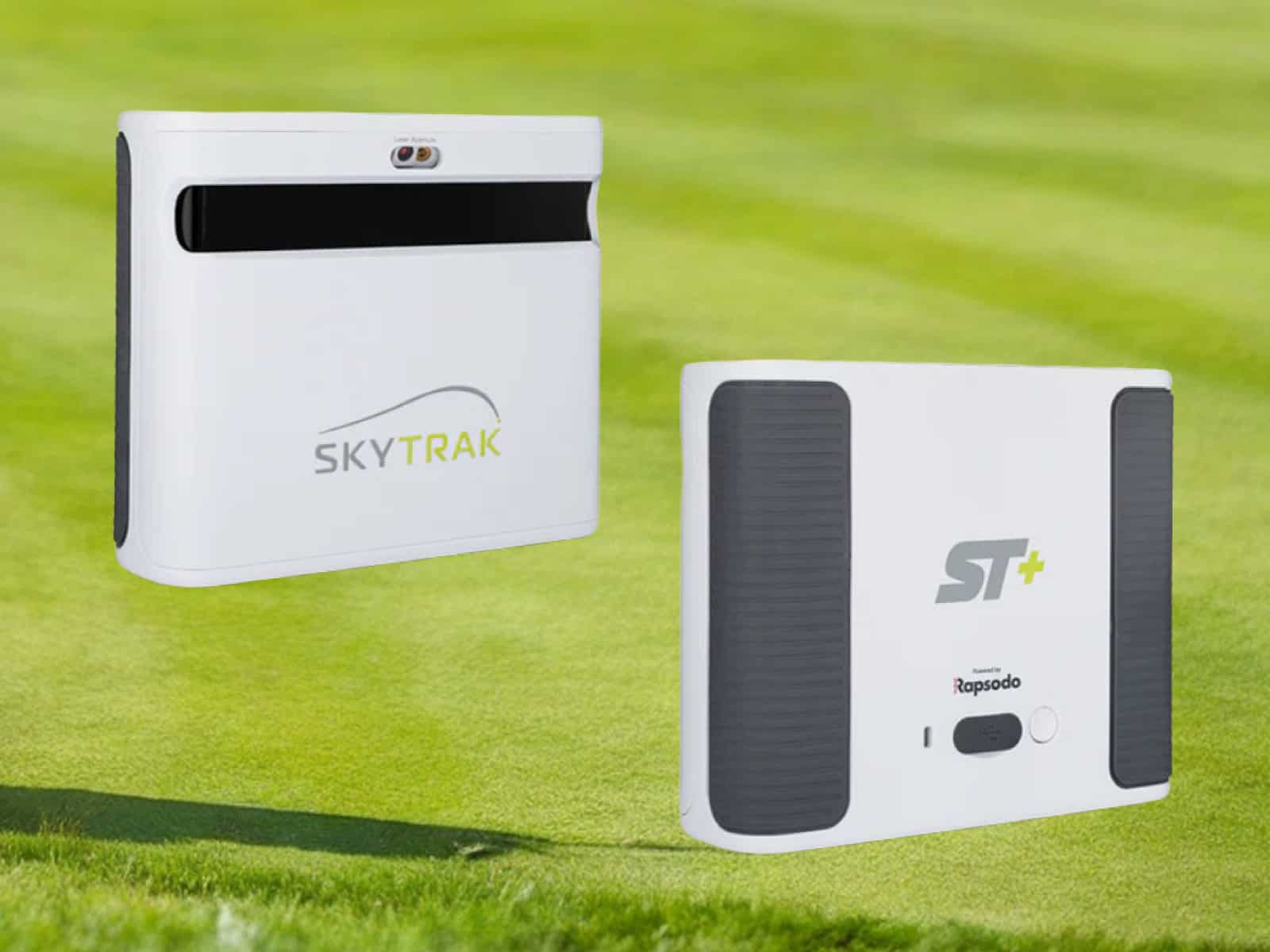
SkyTrak+ launch monitors are incredible tools, but like any gadget, they can hit a wall. Maybe it freezes mid-session, maybe it refuses to connect, or worse, it won’t power up at all. That’s when a reset can save the day. Our picks: cases, mats and power add-ons for SkyTrak.
It’s like giving the unit a fresh breath of air. A hard reset can clear out small hiccups, while restoring factory defaults wipes the slate clean for bigger problems.
Here you’ll find step-by-step reset instructions for your Skytrak+ so you can get back to swinging instead of staring at blinking lights.
Hard Reset Instructions for SkyTrak+
Sometimes your SkyTrak+ needs more than a simple restart. A hard reset clears out stubborn glitches and gets the unit talking again without wiping everything clean. Here’s how to do it quickly and safely.
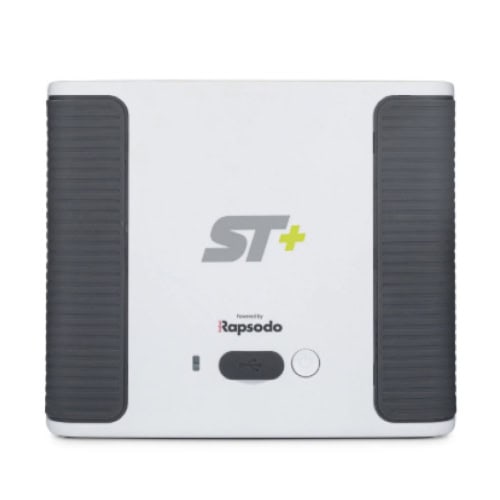
First, flip the unit over and look for the tiny threaded hole on the bottom. That’s where the reset button hides. Grab a paperclip or pin, press inside, and hold steady for about 10 seconds.
Keep your eyes on the lights. They’ll flash amber across the board, and that’s your signal to let go.
Light Pattern Confirmation
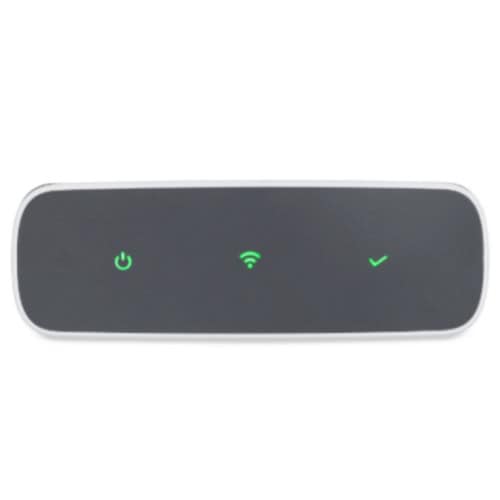
Once released, watch the indicators carefully. You want to see solid red on the Check light, solid red on the Wi-Fi light and solid green on the Power light. That sequence tells you the reset worked and the monitor is back on track.
If you’re unsure about what each indicator means during startup or reset, our detailed guide on SkyTrak+ warning lights explains the green, yellow, and red signals in depth.
When to Use a Hard Reset
Not every hiccup calls for the big hammer, but sometimes nothing else works. If the SkyTrak+ freezes mid-round, hangs in network mode or ignores your attempts to start in direct mode, this is your fix.
Think of it as a quick tap on the shoulder to wake the device up before moving to heavier solutions. And if that doesn’t cut it, you’ll need to dig deeper…
Restoring Factory Defaults on SkyTrak+
Sometimes a hard reset won’t cut it, and you need to wipe the slate clean. Restoring factory defaults clears all settings and brings the device back to its original state, just like the day you unboxed it.
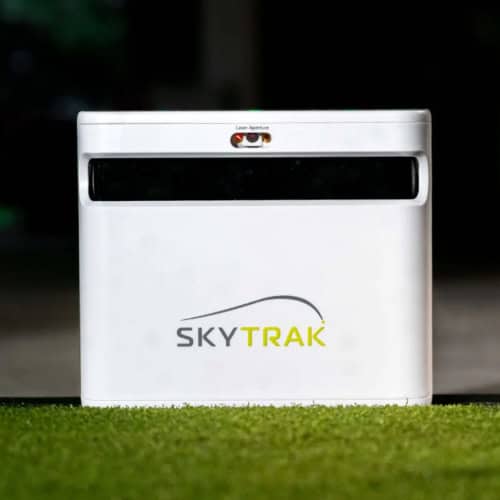
Resetting Through Software
- Power on your SkyTrak+ and connect it using USB, Network or Direct Mode.
- Open the SkyTrak app on your device and log into your profile.
- Tap the profile icon in the top right, then scroll to the “About” section.
- Next to your serial number, select “Reset.”
- Confirm by choosing “Yes.”
- Wait for the lights to show Red Check, Red Wi-Fi and Green Power.
- Turn the unit off, then back on to complete the reset.
Preparing for a Factory Reset
Before you push the button, make sure you know what you’re giving up. Every setting you’ve saved will be erased, and you’ll be starting from scratch.
If you want to keep your shot history, back it up before you begin. Afterward, check for firmware updates and reinstall them if prompted.
Troubleshooting Reset Issues
Even after a proper reset, your SkyTrak+ might throw curveballs. Power failures, stubborn connections or mode lockups can still trip you up. Here’s how to deal with the most common snags so you can keep swinging without losing time.
Device Won’t Power On
If your SkyTrak+ shows no signs of life, start simple. Swap out the USB-C cable and use a different charger. Many golfers discover the issue is nothing more than a weak cable or bad power block.
Skip splitter cables too; they often cut power and cause strange behavior. If you still see nothing, test the unit indoors, as cold garages and hot sheds can make electronics act up.
Connection Problems After Reset
Sometimes the reset works, but the connection still refuses to play ball. Check your Wi-Fi first. The SkyTrak+ only works on 2.4 GHz, not 5 GHz.
Next, make sure your network name and password don’t use odd symbols—those can throw the software off. Software pairings are in the best simulation software for SkyTrak.
On a PC, firewalls or VPNs may block the handshake. Turn them off temporarily to see if that clears the roadblock.
For a deeper walkthrough on fixing stubborn connectivity errors, see our complete guide on SkyTrak+ not connecting Wi-Fi.
Stuck in Network Mode
Now and then, the monitor clings to network mode like a stubborn caddie. One trick is to move it out of Wi-Fi range, forcing it to reset its grip. Another is to connect in direct mode using iOS, which often shakes it loose.
If that fails, hook it straight into a PC with a USB cable. That connection cuts through most network tangles.
Frequently Asked Questions
If you have any questions after resetting your SkyTrak+, these common answers clear up the confusion and keep you moving forward.
How do I reset my SkyTrak+ if the software reset option doesn’t appear?
You can use the hard reset method with the button on the bottom of the unit. A paperclip works best to press and hold until the lights flash.
Will resetting my SkyTrak+ remove my subscription or membership?
No. Your subscription is tied to your account, not the device settings. A reset only affects local configurations.
Can I perform a reset without connecting to Wi-Fi?
Yes. The hard reset does not require Wi-Fi. The software reset does, but you can connect through USB or Direct Mode instead.
How long does a factory reset usually take on SkyTrak+?
The process itself takes less than a minute. Add a few more minutes for the unit to restart and reconnect.
Does a hard reset affect my saved shot history?
No. Hard resets only clear temporary issues. Your shot history remains stored unless you choose to erase it.
What should I do if the reset light sequence does not match the guide?
Try the reset again. If the lights still don’t line up, use a different cable, move closer to your router, or contact support.
Is there a difference between resetting on PC vs resetting on iOS/Android?
The steps are nearly the same, but navigation in the app may look slightly different. Both platforms reach the same reset option in the “About” section.
Final Thoughts
A reset isn’t about fixing everything—it’s about clearing the clutter so the SkyTrak+ can do its job. Whether you used the button on the unit or the reset option in the app, the goal is the same: give the monitor a clean start.
It’s like walking back to the tee after a bad shot. You’re not changing your swing forever, just giving yourself another chance with a fresh ball. By knowing when and how to reset, you keep your rounds smooth and your focus on the game instead of blinking lights.
But the real question is, what happens when even a reset doesn’t bring it back to life?