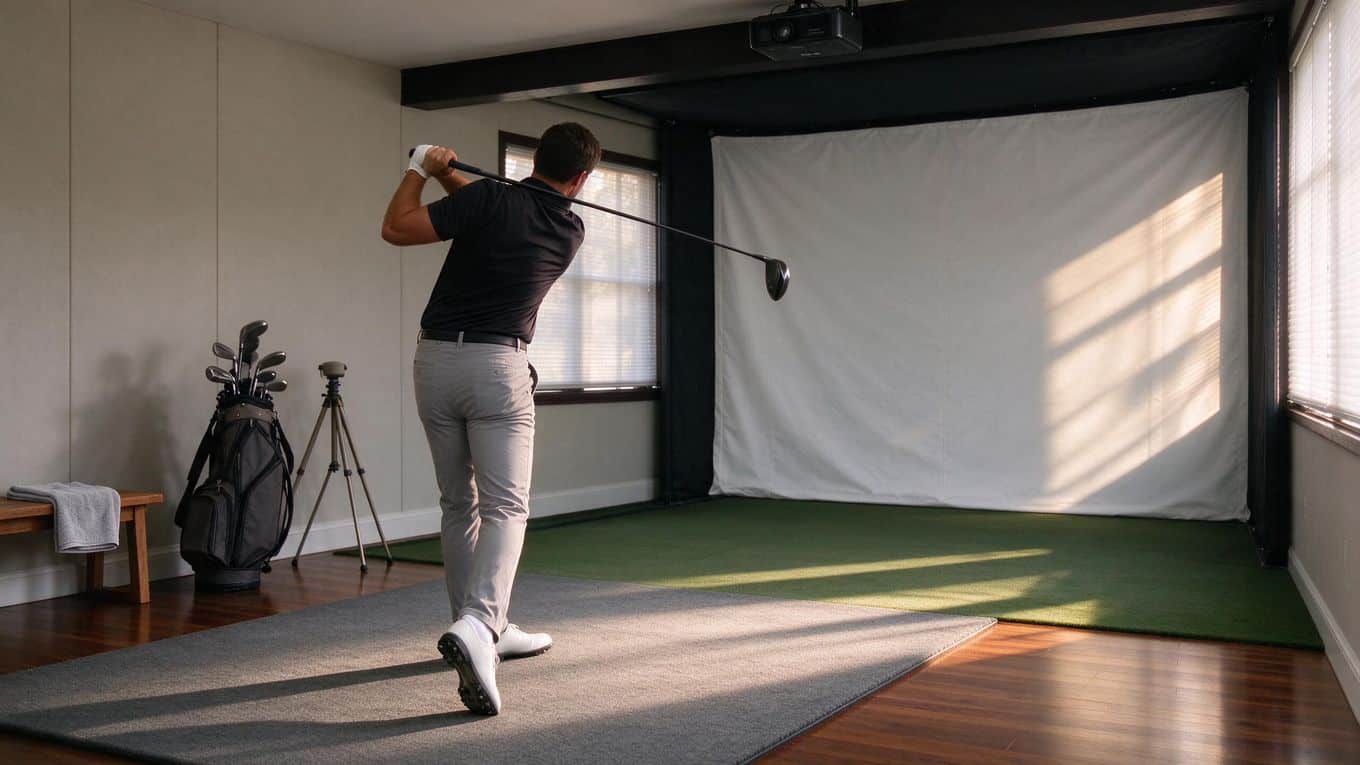


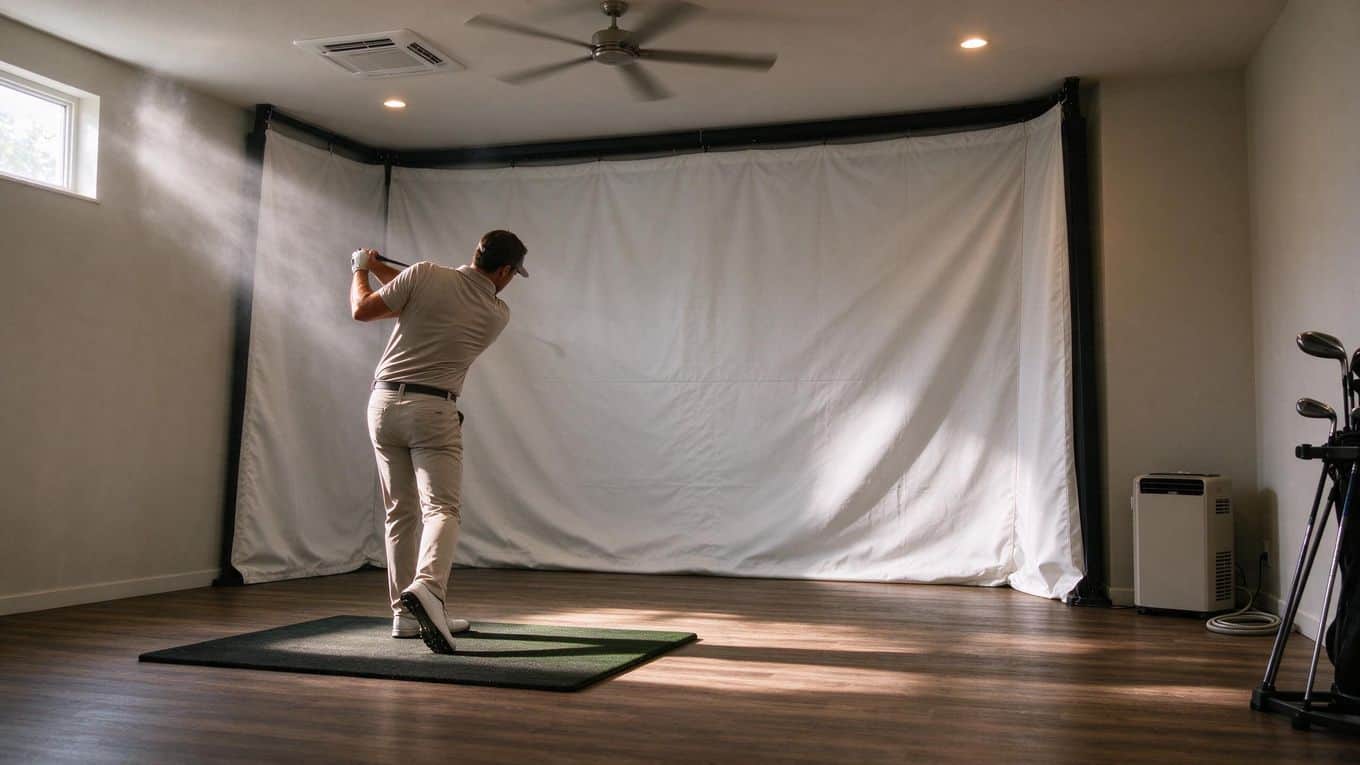
You built the simulator room, dialed in the projector and hit your first shots. Then summer arrived, or the basement turned damp, and the room started fighting back: a fogged screen, a PC that throttles, a projector that turns the space into a sauna.
A simulator room is a small, closed space packed with heat-producing electronics and moisture-sensitive gear. Get the climate wrong and you shorten your equipment’s life and spend every session uncomfortable.
This guide gives you the targets to aim for, a five-step setup that works in any room, how to handle heat from your projector and PC, what changes in a garage or basement, and how to keep airflow quiet and draft-free.
Target Temperature and Humidity Ranges
Set your targets before you buy anything. They decide which equipment you actually need.
Temperature: 15-21°C (59-70°F)
Aim for a steady 15-21°C (59-70°F). That range keeps you comfortable while you swing and stops your projector and PC from running hot.
Stability matters as much as the number. Big temperature swings between sessions are hard on projector lamps and PC components, so pick a setpoint and hold it.
Humidity: 40-60%
Keep relative humidity between 40% and 60%. Above 60%, condensation can form on your launch monitor, projector lens and screen, and wooden and metal parts start to suffer. Around 50% is a good dehumidifier setting; going much lower only wastes energy.
Check humidity with a basic hygrometer placed near your PC and projector, not only in the middle of the room. The two spots can read several points apart, and the equipment corner is the one that matters.
Step-by-Step Climate Setup for a Golf Simulator Room
Climate control is a sequence, not a single purchase. Work through these steps in order, and each one makes the next one cheaper.
Step 1: Identify Your Room Type and Its Problems
A dedicated room inside your home usually has finished walls, existing HVAC and stable temperatures, so it is the easiest to control. A garage sits outside your home’s insulated envelope: it runs hot in summer, cold in winter, and leaks air at every door seam. A basement stays cooler but holds moisture, because concrete walls and floors release it, especially in humid climates.
Walk the room at different times of day and note:
- Where it feels warm, cold or damp
- Wall, ceiling and floor construction
- Windows, and whether they open
- Existing HVAC vents, heaters, air conditioners or dehumidifiers
- Water stains, peeling paint, musty smells or condensation
If you find signs of moisture, treat it as your first problem, not your last. This list becomes your shopping list for the steps below.
Step 2: Seal Air Leaks and Insulate First
Insulation and air sealing are the cheapest climate upgrades you can make. A sealed, insulated room holds its temperature longer, so you can buy smaller heating, cooling and dehumidifying equipment and run it less.
- Weatherstrip doors and windows
- Seal gaps around pipes, wires and ducts with spray foam or caulk
- Insulate the garage door, or replace it with an insulated model
- Insulate basement rim joists, and use rigid foam board on concrete walls if you are finishing the space
- Cover single-pane windows or add storm panels
To find leaks, close the doors and windows, turn on exhaust fans in nearby rooms and hold a lit incense stick near suspected gaps. If the smoke drifts, air is moving there.
Skip this step and every device you add later spends its energy fighting the outside air.
Step 3: Set Up Passive Ventilation, Intake Low and Exhaust High
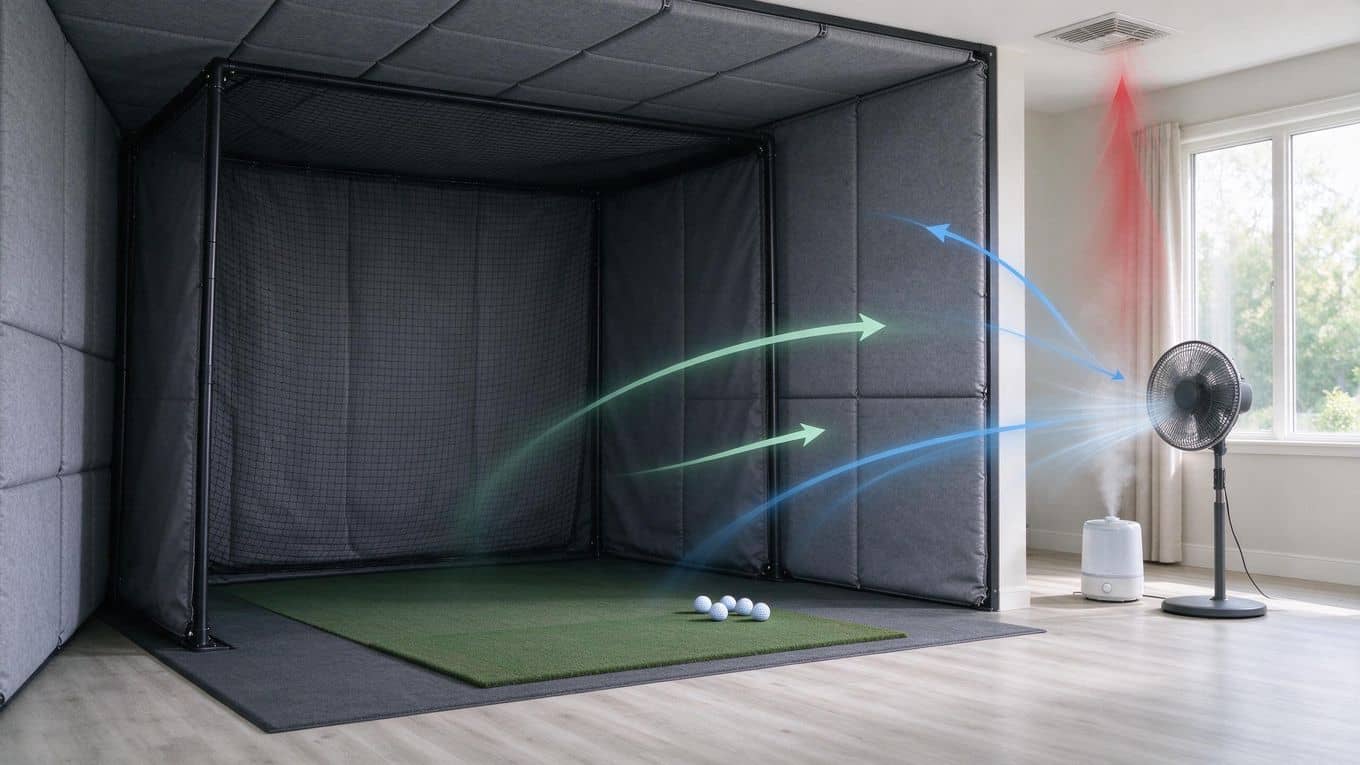
Warm air rises and carries moisture with it. Passive ventilation uses that: cooler air comes in low on one wall, and warm, humid air leaves high on the opposite wall. It costs nothing to run and makes no noise.
- An intake vent or openable window low on one wall
- An exhaust vent or window high on the opposite wall
- A clear path between them, so air actually moves through the room
In a basement, that might be a low vent near the floor paired with a high vent or ceiling exhaust. In a garage, a side door vent and a gable vent work well. Test it on a humid day: if the room still feels clammy after a few hours with the vents open, passive airflow will not fix your moisture problem on its own.
Step 4: Add a Dehumidifier If Humidity Stays High
Fans move air, but they do not remove moisture. Humid air moved around is still humid air. If your hygrometer stays above 60%, you need a device that pulls water out of the air.
Add a dedicated dehumidifier when:
- Your room is a basement, garage or other below-grade space
- You see condensation on the screen, the lens or metal surfaces
- You live in a coastal, rainy or humid climate, where outdoor air is often as damp as the air inside
- Your HVAC cannot hold humidity below 60% on its own
Size it for the room’s square footage, not just the bucket capacity, and run it on a humidistat so it holds your target. A continuous drain hose saves you emptying a bucket. If heat is your only problem and humidity stays below 50%, ventilation and an exhaust fan are enough. If you have both heat and damp, use both.
Step 5: Add Heating or Cooling Last
Heating and cooling come last because they work best in a room that holds treated air. Once the room is sealed, insulated and ventilated, choose the option that fits:
- HVAC zone control if your central system has spare capacity, so you can condition the simulator room without heating or cooling the whole house
- A mini-split heat pump for year-round heating and cooling, especially in an insulated garage
- A portable or window AC for summer cooling where ductwork cannot reach; place it away from your swing path and screen
- A space heater for cold-weather sessions if you have no central heat
Keep the door closed during sessions so you are not letting hallway or garage air into the room, and check filters, vents and seals every few months.
Managing Heat from Projectors and PCs
Your projector and PC are the two biggest heat sources in the room. A projector’s lamp or laser runs hot, and a PC adds heat from its processor, graphics card and power supply. As TrackMan’s simulator setup guide notes, both need adequate airflow to run efficiently.
Give Your Equipment Room to Breathe
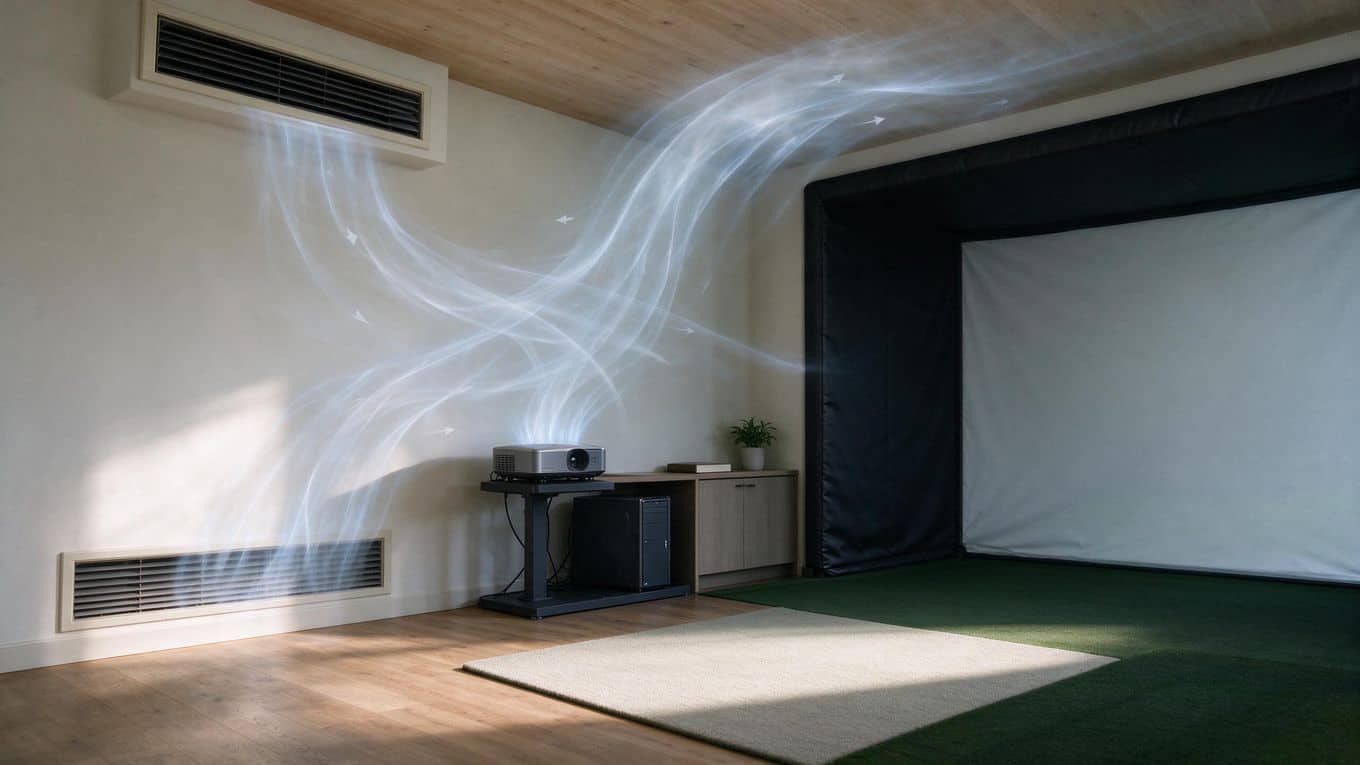
Place your PC with open space on all sides, especially behind it, where the power supply exhausts. Mount the projector with clearance above and below, and never enclose it in a cabinet without ventilation. If your equipment sits in a closet or cabinet, vent that space directly with a small inline duct fan instead of cooling the whole room harder.
Then measure. Run the projector and PC for 30 minutes and check the room temperature. If it climbs more than 2-3°C (4-5°F) above your target, add an exhaust fan near the equipment or more cooling, sized to your equipment’s heat output, not just the room size. Our computer guide for home simulators shows how different PC builds affect heat output and power needs, and our guide on projector versus TV for your simulator covers how a TV can simplify your cooling.
Signs Heat Is Building Up
- The projector fan runs louder than usual or cycles on and off
- PC fans ramp up during longer sessions
- The room feels stuffy within 20-30 minutes of starting
- The projector shuts down or shows an overheat warning
Overheating shortens lamp life and can make a PC throttle or shut down. Moving the PC to a cooler spot, or adding an exhaust fan that vents outside, usually fixes it.
Garage and Basement Climate Setups
Garages and basements are the most common simulator spaces, and each has one main enemy: temperature swings in a garage, damp in a basement.
Garage Simulator Rooms
A garage can reach 35°C (95°F) on a hot afternoon and drop below freezing in winter. Insulate the walls, ceiling and garage door first, and seal the door edges, which otherwise let in hot air, dust and humidity even when closed.
For ventilation, pair a low vent or window on one side with an exhaust fan or high vent on the other, so hot air leaves without a fan blowing on you while you swing. For heating and cooling, a mini-split heat pump works well once the garage is insulated; in milder climates, a window or portable AC with a ceiling fan can be enough. Running a heater or AC in an uninsulated garage wastes energy and still leaves hot spots.
Planning a build? See our garage simulator build guide.
Basement Simulator Rooms
Basements run cool and damp, so a dehumidifier is usually the first thing you buy. Run it on a humidistat, make sure it drains properly, and lay a moisture barrier before you put down turf or mats so damp does not get trapped underneath.
Most basements have few windows, so add low and high vents on opposite walls if you can, or use an inline duct fan to bring fresh air in and push stale air out. If your home has central HVAC, a zone damper lets you condition the basement on its own. If humidity stays above 60% even with a dehumidifier running, seal the concrete or improve exterior drainage before you install electronics.
See our guide on building a golf simulator in a basement for room-specific steps.
Keeping Airflow Quiet and Draft-Free
Good airflow should go unnoticed. A vent blowing across your swing path, dust on the projector lens or a fan you can hear at the hitting position all make your sessions worse.
Place Vents Away from Your Swing
Keep the intake low and the exhaust high, and position both away from your hitting area. Never point a fan at your hitting zone. Ceiling fans work for general circulation on a low setting; keep the speed low enough that you never feel a breeze during your swing.
If you want fresh air, open a window or vent on the wall opposite your hitting zone during breaks rather than during play. A small air purifier in a corner, away from the hitting area, filters dust without adding noise near you.
Keep Fans and Dehumidifiers Quiet
Choose fans with a low noise rating if they sit near your hitting area. Inline duct fans mounted in the ceiling or an adjacent closet keep the motor out of earshot. For a dehumidifier, pick a model with a low-noise mode, or place it outside the room with a duct kit.
Running fans at full speed is not the answer either: it adds noise and stirs up dust that settles on the projector lens. Use a moderate speed that keeps temperatures stable, and keep projector vents clear of walls.
If you are soundproofing, plan the vents first. Insulation and acoustic panels reduce noise but also reduce airflow, and our guide on soundproofing a golf simulator room covers how to seal a room without trapping heat and moisture. Before you close up the walls, run the projector and PC for an hour and stand at your hitting position. If you feel a draft, hear the fan or see dust on the screen, adjust the vents or the fan speed.
Common Mistakes to Avoid
- Treating a fan as a dehumidifier. Fans circulate air; only a dehumidifier removes moisture.
- Heating or cooling before insulating. The room never stabilizes, and you pay for it every month.
- Relying on open windows in damp weather. On humid or rainy days, ventilation brings moisture in.
- Boxing in your equipment. A projector or PC in a closed cabinet runs hot, loud and short-lived.
Frequently Asked Questions
What temperature and humidity range works best for a golf simulator room?
Aim for a steady 15-21°C (59-70°F) with relative humidity between 40-60%. Rapid temperature swings stress projector lamps and PC components, so stability matters more than hitting a specific number. Keep humidity below 60% to prevent condensation on your launch monitor, projector lens, and screen.
How do you reduce heat buildup from a projector and PC?
Your projector and PC generate heat, and both need adequate airflow to operate efficiently. Position your PC in an open area with intake and exhaust clearance. Mount the projector where air can circulate around it rather than trapping heat against a ceiling. Add a small exhaust fan near the equipment to pull hot air out of the room.
When is a dehumidifier necessary versus ventilation alone?
Use ventilation alone if your room has openable windows or vents that create cross-breezes and your climate stays moderate. Add a dedicated dehumidifier when humidity regularly exceeds 60%, when you live in a humid climate, or when ventilation cannot keep moisture down. Fans move air but do not remove moisture, so humid air circulated is still humid air.
What setup works best for a garage or basement simulator room?
Garages and basements run damp year-round, so plan on both insulation and active moisture control. Seal the space, insulate walls and ceiling, and install a mini-split or dedicated HVAC zone for temperature stability. Pair that with a dehumidifier sized for the square footage.
How do you improve air quality without creating draft or noise problems?
Use low-speed ceiling fans or oscillating fans on a low setting to keep air moving without creating a draft on your swing. Place a small air purifier in a corner away from the hitting area to filter dust without adding noise near your ears. If you need fresh air, open a window or vent on the opposite wall from your hitting zone during breaks rather than during play.
Final Thoughts
A comfortable simulator room comes from doing things in the right order: insulate and seal first, ventilate second, then add a dehumidifier and heating or cooling only where your room needs them. Hold 15-21°C (59-70°F) and 40-60% humidity, and give your projector and PC the airflow they need.
Your next step is simple. Walk your room today and note where heat builds, where moisture collects and where the air feels stale. Fix the biggest problem first, and you will have a room you can play in twelve months a year.