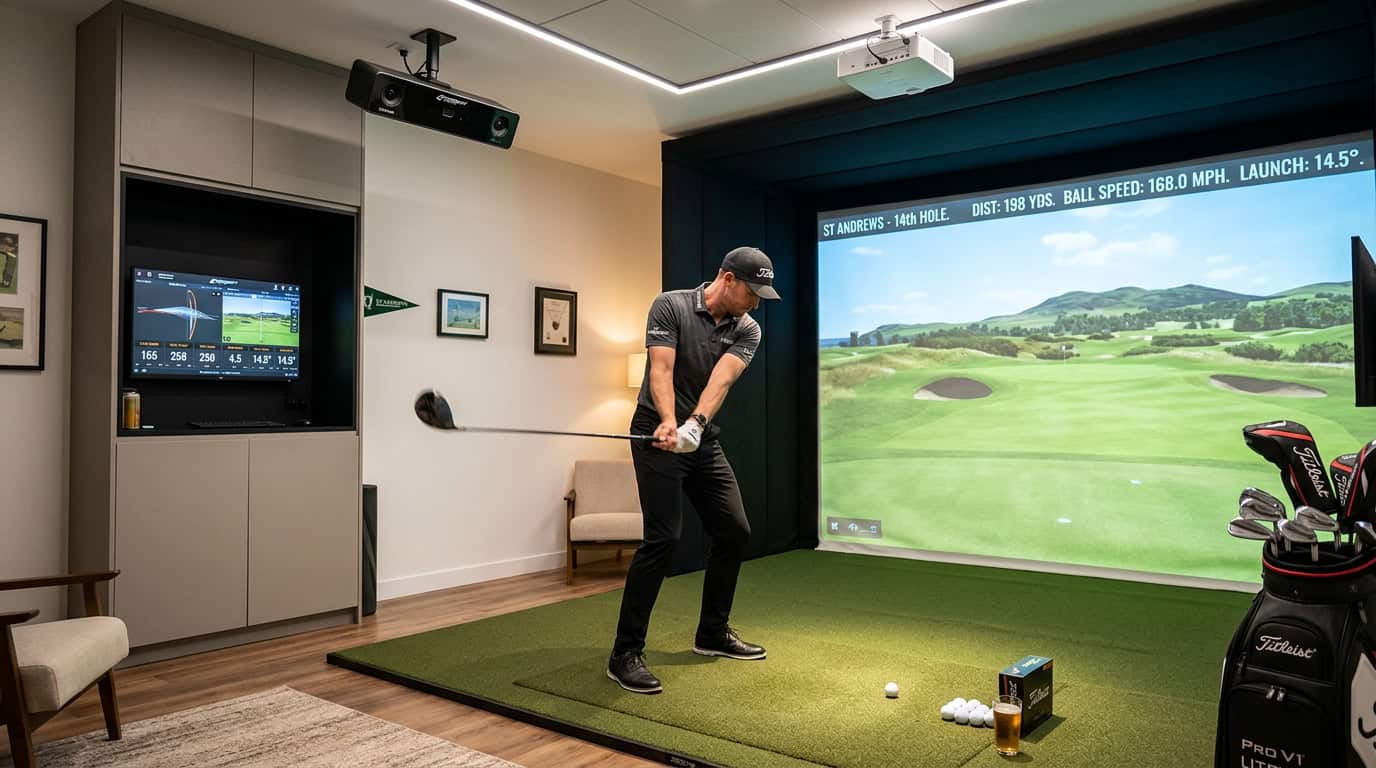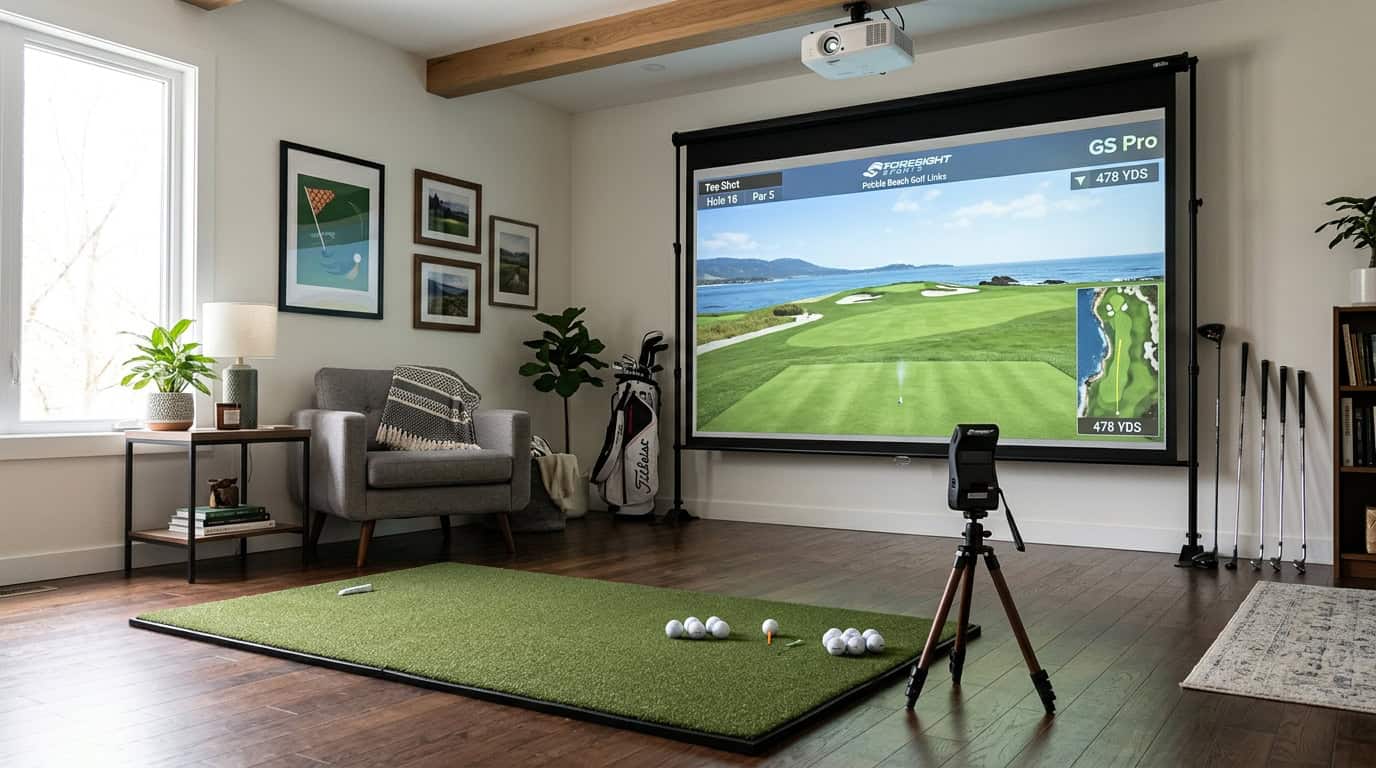



A golf simulator can track your swing speed and launch angle, but if the ball isn’t positioned correctly, every shot feels off. Proper ball and stance positioning indoors ensures your simulator reads shots accurately and your practice translates to real-course results. Small adjustments, like moving the ball half an inch forward or widening your stance, can improve shot shape and simulator feedback. The good news? You don’t need expensive tools to get it right.
This guide covers where to position the ball for every club, how to align your stance indoors, and how to use simulator lasers or target lines to improve accuracy. We’ll also highlight common mistakes that make indoor shots feel unrealistic and how to fix them, so your next simulator session actually helps your game.
Understanding Realistic Golf Simulator Setup
A golf simulator lets you practice year-round, but the experience only feels real if the ball and stance are positioned correctly. Small misalignments can make shots fly offline or cause the simulator to misread your swing. Proper setup ensures your indoor practice translates to better performance on the course.
Proper alignment is essential for consistent indoor golf swing and shot direction. For example, placing the ball too far forward or back in your stance can alter launch angle and shot shape. The same applies to stance width and body alignment, which influence weight transfer and club path.
Why Proper Alignment Matters for Indoor Golf
Proper alignment is essential for consistent indoor golf swing and shot direction. When the ball and stance are misaligned, the simulator may record incorrect clubface angles or swing paths, leading to unreliable feedback. For instance, if the ball sits too close to the screen, the simulator might register a topped shot even if your swing was clean.
Alignment also affects muscle memory. Practicing with the ball in the wrong position reinforces bad habits, making it harder to adjust when you play outdoors. For right-handed golfers, the driver should sit near the inside of the lead heel, while irons move progressively farther back as loft increases. These positions mirror real-course conditions and help maintain a natural swing rhythm.
Common mistakes include:
- Standing too close or far from the ball, which alters posture and swing plane
- Ignoring the simulator’s target line or laser reference, causing misreads
- Using the same ball position for all clubs, which disrupts shot consistency
For more on spacing, see our guide on golf simulator distance from tee to screen.
Key Elements of a Realistic Simulator Setup
A realistic setup requires attention to three core elements: ball position, stance width, and body alignment. Each varies by club type and shot intent.
Ball position
- Driver: Forward in the stance, near the inside of the lead heel for right-handed golfers. This promotes an upward strike and maximizes distance.
- Fairway woods: Slightly behind the driver position, about halfway between the lead heel and center of the stance. This encourages a sweeping motion.
- Irons: Moves progressively farther back as loft increases. Long irons (e.g., 4-iron) sit closer to center, while wedges align with the trail heel.
- Putting: Centered in the stance, with the ball directly under the eyes when bent forward. This ensures a square putter face at impact.
Stance width
- Wider for drivers and fairway woods to stabilize the swing and generate power.
- Narrower for short irons and wedges to improve control and precision.
- Putting stance is shoulder-width or slightly narrower for balance.
Body alignment
- Feet, hips, and shoulders should parallel the target line (or simulator’s laser reference).
- For right-handed golfers, the trail foot can flare slightly outward to promote hip rotation.
- Avoid over-rotating the shoulders, which can cause pulls or hooks.
Simulator setup may require adjusting ball position relative to the device or laser reference to improve reading accuracy. For example, if the simulator’s launch monitor sits to the side, you might need to shift the ball 1–2 inches forward or back to ensure clean contact with the sensor. Always test a few shots and check the data for consistency.
Essential Tools for Accurate Positioning
Accurate ball and stance positioning in a golf simulator starts with the right tools. Without them, alignment errors can go unnoticed, leading to inconsistent swing mechanics and unreliable shot data. A few key tools make the biggest difference in achieving realistic indoor play.
Alignment Mats and Visual Aids
Alignment mats provide a consistent reference for foot placement and ball position. Most include marked target lines or grids that help golfers replicate their stance from shot to shot. Some advanced mats even feature club path guides or visual aids for swing plane alignment.
- Target line markers: Help align the clubface square to the intended target. This is especially useful for indoor setups where natural visual cues (like trees or fairway contours) are absent.
- Stance guides: Indicate proper foot spacing and ball position relative to the feet. This ensures the golfer maintains a repeatable setup, even when switching clubs.
- Portability: Many mats are lightweight and can be rolled up for storage, making them ideal for home simulators with limited space.
A common mistake is using a generic golf simulator hitting mat without alignment features. While these mats provide a realistic hitting surface, they lack the visual references needed for precise ball positioning. For best results, pair a hitting mat with a dedicated alignment mat or choose a mat with built-in guides.
Launch Monitor and Laser Reference Systems
Launch monitors and laser reference systems provide real-time feedback on ball position and swing path. These tools help golfers adjust their setup to ensure the simulator reads their shots accurately.
- Laser alignment tools: Project a visible line or dot onto the hitting surface, showing the ideal ball position relative to the launch monitor. This is particularly useful for simulators that require the ball to be placed at a specific distance from the device.
- Launch monitor feedback: Many modern simulators display ball position data, such as strike location on the clubface or swing path deviation. Use this data to fine-tune your stance and ball placement.
For example, if your launch monitor consistently reads shots as too far forward or back in your stance, you may need to adjust your ball position relative to the laser reference. This is especially important for clubs with different lofts, as ball position shifts progressively from driver to wedge.
Simulator setup often requires small adjustments to ball position to improve reading accuracy. A laser reference system can help identify these adjustments quickly, reducing trial and error during practice sessions.
Step-by-Step Guide to Ball and Stance Positioning
Proper ball and stance positioning in a golf simulator helps achieve accurate shot data and a natural swing feel. Small adjustments matter when switching between clubs. Follow these steps for each club type to improve consistency.
Setting Your Stance and Body Alignment
Align your feet, hips, and shoulders parallel to the target line. For right-handed golfers, the left shoulder should point slightly left of the target. Adjust foot width based on the club: shoulder-width for mid-irons, wider for drivers, narrower for wedges.
- Checklist for alignment:
- Place a club or alignment stick on the ground to verify foot position.
- Keep weight balanced between both feet at address.
- Avoid tilting your spine away from the target.
Proper alignment is essential for consistent indoor golf swing and shot direction. Misalignment often leads to swing compensations that simulators may not detect accurately.
Driver Ball Position
Place the ball just inside the lead heel (left heel for right-handed golfers). This position encourages an upward strike for maximum distance. Tee the ball so half sits above the driver’s crown at address.
- Common mistake: Playing the ball too far back in the stance reduces carry distance by steepening the angle of attack.
Fairway Wood Ball Position
Position fairway woods one ball width closer to the center of your stance than the driver. This adjustment promotes a shallower angle of attack, reducing the risk of hitting the ground first.
- Tip: For tight lies, move the ball slightly farther back to ensure clean contact.
Iron Ball Position
Iron ball position moves progressively farther back as loft increases. Long irons (2-4) sit near the center of the stance, mid-irons (5-7) one ball width behind center, and short irons/wedges (8-PW) two ball widths behind center.
- Quick reference:
- Long irons: Center of stance
- Mid-irons: One ball width behind center
- Short irons/wedges: Two ball widths behind center
This progression helps control trajectory and spin, which simulators measure precisely.
Adjusting Ball Position for Simulator Device Accuracy
Simulator setup may require slight adjustments to ball position relative to the launch monitor or hitting mat. If the device reads shots inconsistently, move the ball 1-2 inches forward or backward to improve sensor alignment.
- For SkyTrak+ users: Our guide on optimizing SkyTrak+ ball positioning offers device-specific adjustments.
- General tip: Use a laser or alignment tool to mark the optimal position for each club.
For more on how positioning impacts data reliability, see our article on how accurate golf simulators are.
Maintaining a Clean Hitting Area
A clutter-free hitting area prevents interference with swing mechanics and simulator sensors. Keep the space around the ball clear of debris.
- Best practices:
- Use a mat with a defined hitting area to standardize ball position.
- Sweep the floor regularly to remove loose turf or dirt.
- Ensure the simulator’s camera or radar has an unobstructed view of the ball.
Even small distractions in the hitting area can lead to inconsistent data.
Common Positioning Mistakes to Avoid
Proper ball and stance positioning in a golf simulator affects shot accuracy and swing consistency. Small errors can lead to misreads by the launch monitor or unnatural swing mechanics. Three mistakes recur across skill levels. Correcting these improves simulator performance and mirrors on-course conditions more closely.
Incorrect Ball Placement in Stance
Ball position changes with each club. Placing it too far forward or back alters swing path and launch angle. For a right-handed golfer:
- Driver: Ball should sit near the inside of the lead heel. This promotes upward strike and maximizes distance. Proper alignment is essential for consistent indoor golf swing and shot direction.
- Fairway woods: Position the ball slightly behind the driver’s spot, about halfway between the lead heel and center of stance.
- Irons: Move the ball progressively farther back as loft increases. Long irons sit forward of center; wedges align near the trail foot.
Simulator sensors may misread shots if the ball is placed incorrectly. For example, a driver ball too far back can trigger a negative attack angle reading. Use the club’s natural address position as a starting point, then adjust based on shot shape and launch data.
Misaligning Body to Target Line
Misalignment causes the simulator to register shots offline even if the swing is sound. The feet, hips, and shoulders should form parallel lines to the target. Common errors include:
- Open stance: Feet aimed left of target (for right-handed golfers) encourage an outside-in swing path.
- Closed stance: Feet aimed right of target promote an inside-out path, often leading to hooks.
To check alignment, lay a club or alignment stick on the ground pointing at the target. Position your feet parallel to this line. Many simulators project a virtual target line; use this as a reference. Simulator setup may require adjusting ball position relative to the device or laser reference to improve reading accuracy.
Interference from Extra Objects in Hitting Area
Simulators rely on cameras or radar to track the ball and club. Extra objects in the hitting zone can confuse the system. Common culprits include:
- Multiple balls: Using more than one ball at a time causes the simulator to lock onto the wrong one. Always hit one ball per shot.
- Tees or markers: Leave tees in the mat or place alignment tools near the ball path. These can trigger false readings or block the sensor’s view.
- Reflective surfaces: Mirrors, metallic objects, or glossy mats may interfere with camera-based systems.
Clear the hitting area before each shot. If your simulator uses a laser or dot for alignment, ensure nothing obstructs its path to the ball. For more on avoiding setup errors, see our guide on common golf simulator mistakes.
Frequently Asked Questions
Where should the ball sit for driver, woods, irons, and putting?
For a driver, place the ball near the inside of your lead heel (left heel for right-handed golfers). This forward position helps maximize launch angle and distance. Fairway woods sit slightly behind the driver position, about halfway between your lead heel and center of stance.
How should stance width and body alignment change indoors?
Indoor stances often need slight adjustments for stability. Widen your stance by 1-2 inches compared to outdoor play to improve balance on mats. Keep your feet parallel to the target line, with shoulders and hips aligned squarely.
How do I align the ball to simulator lasers or target lines?
Most simulators use lasers or visual guides to mark the ideal ball position. Place the ball so the laser intersects its equator or slightly above center. For systems with floor markings, position the ball directly over the designated spot.
What mistakes make simulator shots feel unrealistic or read poorly?
Common mistakes include: – Ball position too far forward/back: Causes misreads or unnatural launch angles. – Inconsistent stance width: Leads to balance issues and poor contact. – Misaligned body position: Shoulders or hips open/closed to the target line. – Poor mat placement: Hitting off-center or near mat edges affects sensor accuracy.
Final Thoughts
Realistic ball and stance positioning in a golf simulator trains muscle memory that translates to the course. We covered the core principles: aligning your body to the target line, adjusting ball position by club type, and using tools like laser guides or alignment sticks to remove guesswork. Small mistakes, like leaving tees in the hitting area or misplacing the ball in your stance, can skew data and reinforce bad habits. The step-by-step guide showed how to adapt traditional setup rules for indoor play, where simulator accuracy depends on precise positioning relative to sensors or cameras.
Start by testing one club at a time—driver, then irons, then wedges—and note how ball position shifts with loft. Use your simulator’s feedback to fine-tune; if shots consistently pull or slice, revisit alignment before blaming the swing. For putting, focus on stroke path and speed, as indoor greens often lack the break of real turf. Keep the hitting area clear of debris, and avoid multiple balls to prevent misreads. If you’re unsure about your setup, record your stance from down-the-line and face-on angles to compare with pro examples.
Consistency is the goal. A simulator won’t fix flaws overnight, but with deliberate practice, it’ll expose them and help you correct them. Now, step up to the mat, pick a target, and trust the process.