

You swing, wait, and finally see the ball flight appear on screen, two, three, even four seconds later. That delay between impact and visual feedback isn’t just frustrating; it disrupts your rhythm and makes it harder to trust the data. Golf simulator shot delay, or system latency, is a common issue, especially with launch monitors like SkyTrak and SkyTrak Plus (ST+). But what causes it, and how much lag is normal?
Most golf simulators introduce some delay due to data processing, transfer speeds, and display refresh rates. SkyTrak, for example, typically takes about two seconds to register a shot, while SkyTrak+ shaves off a fraction of a second, still far from instant. If your delay stretches beyond four seconds, the problem likely lies with your computer, projector, or cables rather than the launch monitor itself. The good news? There are practical ways to minimize lag without sacrificing accuracy.
In this guide, we’ll break down what causes golf simulator shot delay, compare normal latency across different launch monitors, and show you how to diagnose whether the issue stems from your hardware or setup. You’ll also learn step-by-step fixes to reduce lag, from optimizing your computer’s performance to syncing your projector’s refresh rate. By the end, you’ll know how to get closer to real-time feedback and a smoother practice session.
What is Golf Simulator Shot Delay and System Latency?
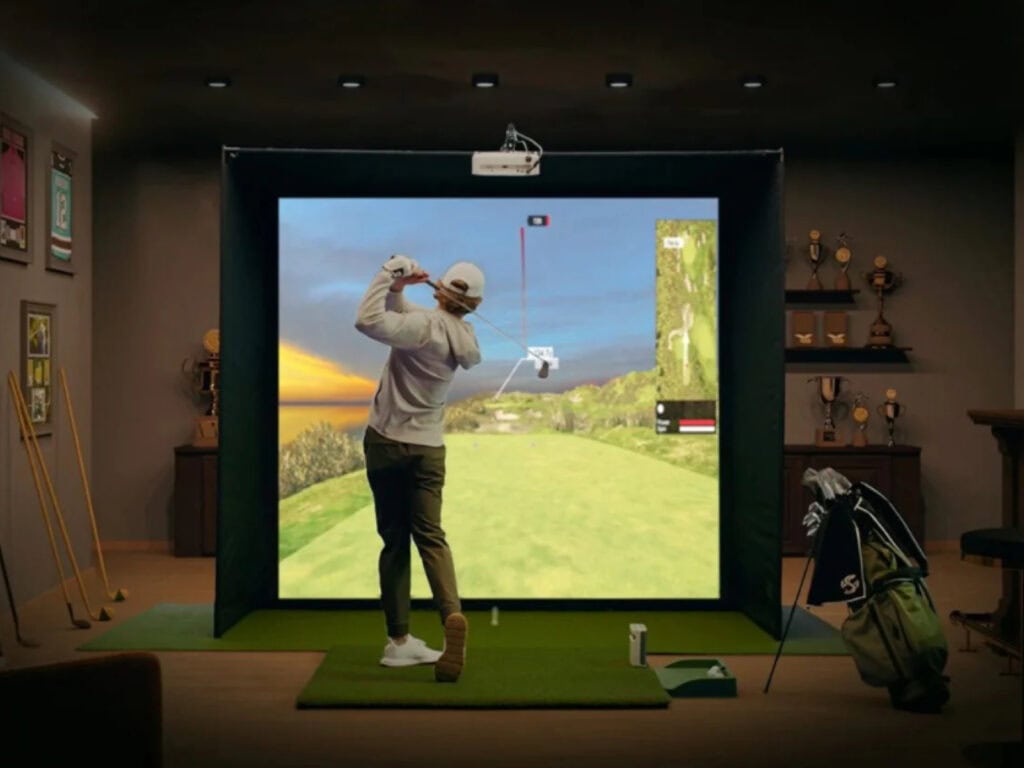
Golf simulator shot delay is the pause between hitting the ball and seeing the shot appear on screen. This lag, also called system latency, affects how realistic your practice feels. If the delay is too long, it can disrupt your swing timing and make the experience less immersive. Understanding where this delay comes from helps you choose the right setup and reduce lag.
Defining Shot Delay and Launch Monitor Latency
Shot delay is the time it takes for your launch monitor to detect the ball, process the data, and display the shot on screen. Launch monitor latency refers specifically to the delay caused by the device capturing and calculating ball flight data. For example, SkyTrak and SkyTrak+ typically show a delay of about two seconds between impact and shot rendering. This is normal for camera-based systems, which need time to analyze ball speed, spin, and direction.
Latency isn’t just about the launch monitor. It includes every step from impact to on-screen display:
- The launch monitor captures the shot
- Data transfers to your computer or tablet
- The simulator software processes the data
- The image renders on your display
The Components of System Latency
System latency comes from multiple sources. Here’s where delays can add up:
- Launch Monitor Processing
- Camera-based systems (like SkyTrak) take time to analyze images and calculate ball flight. This usually adds 1–3 seconds of delay.
- Radar-based systems (like FlightScope) may process data faster but still introduce some lag.
- Data Transfer
- Wired connections (USB, Ethernet) are faster than Bluetooth or Wi-Fi. A weak wireless signal can increase delay.
- Computer Processing
- Older or underpowered devices struggle to run simulator software smoothly. This can add 1–2 seconds or more to the total delay.
- Display Lag
- Projectors and monitors introduce their own lag. A 60 Hz display refreshes every 16.7 milliseconds, but mismatched refresh rates or outdated cables can slow things down. Using high-speed HDMI or DisplayPort cables and matching refresh rates (e.g., 60 Hz) helps reduce this.
- Software Rendering
- Simulator software must generate the 3D environment and ball flight. Complex courses or high graphics settings can increase rendering time.
Why Near-Zero Delay Matters for Realism
A delay of 1–2 seconds is common and manageable for most golfers. However, delays longer than 3–4 seconds can disrupt your rhythm. Here’s why minimizing lag matters:
- Swing Timing: If you’re used to seeing the ball flight immediately after impact, a long delay can throw off your timing. This makes it harder to adjust your swing during practice.
- Feedback Loop: Quick feedback helps you connect cause and effect, like how a slight change in swing path affects ball flight. Long delays break this connection.
- Immersion: The closer the simulator feels to real golf, the more engaged you’ll be. Near-zero delay makes the experience more natural and enjoyable.
Not all setups can achieve near-zero delay, but understanding the sources of latency helps you optimize your system. For example, upgrading your computer or using wired connections can make a noticeable difference.
Understanding SkyTrak and SkyTrak+ Shot Delay
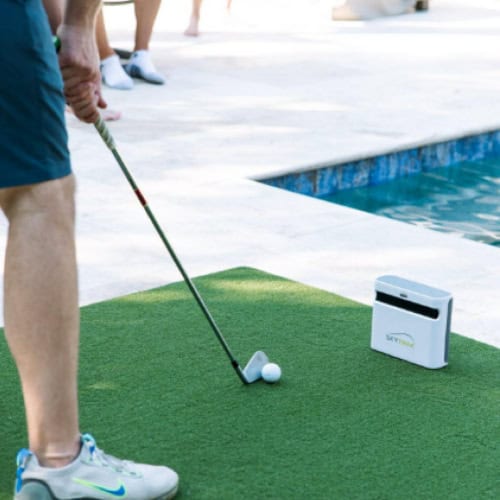
SkyTrak and SkyTrak+ are popular launch monitors for golf simulators, but both introduce a noticeable delay between impact and shot display. This lag stems from how the system captures, processes, and renders data. While some delay is unavoidable, understanding its causes helps users manage expectations and troubleshoot excessive latency.
Why SkyTrak Has a Built-In Two-Second Delay
SkyTrak’s two-second delay isn’t a flaw, it’s a design choice. The system uses high-speed cameras to capture ball flight data, then processes that information before sending it to the simulator software. This sequence takes time:
- Data acquisition: The camera records the ball’s launch angle, speed, and spin immediately after impact.
- Transfer: The data moves from the launch monitor to the connected device (PC, tablet, or phone).
- Processing: The software calculates ball flight, distance, and trajectory.
- Rendering: The shot appears on screen with graphics and metrics.
SkyTrak’s delay ensures accurate shot representation. Faster systems might sacrifice precision for speed, but SkyTrak prioritizes reliable data over near-instant feedback. Users should expect at least two seconds between impact and on-screen results, even in ideal conditions.
SkyTrak vs. SkyTrak+ Average Shot Registration Times
SkyTrak+ improves on the original model but doesn’t eliminate delay. Testing shows:
- Original SkyTrak: ~2.62 seconds to register a shot in software.
- SkyTrak+: ~2.1 seconds on average.
The difference comes from upgraded hardware and software optimizations in SkyTrak+. While the newer model is faster, both systems hover around the two-second mark. Neither achieves near-zero delay, so users should adjust their expectations accordingly.
When Does SkyTrak Lag Become Abnormal?
A two-second delay is normal, but longer pauses signal a problem. Delays exceeding four seconds often stem from:
- Underpowered devices: Older PCs, tablets, or phones struggle to process SkyTrak’s data quickly.
- Background apps: Running other programs (e.g., streaming, antivirus) diverts processing power.
- Weak Wi-Fi: A slow or unstable connection delays data transfer from the launch monitor.
- Outdated software: Old firmware or simulator apps may lack performance optimizations.
If lag persists after closing background apps and updating software, the connected device might not meet SkyTrak’s minimum requirements. Upgrading to a dedicated gaming PC or a newer tablet can reduce abnormal delays.
Key Causes of Golf Simulator System Lag

Golf simulator shot delay disrupts practice by making shots feel sluggish. Latency builds up across four key components. We tested common setups to identify where delays originate and how to fix them.
Launch Monitor Data Processing and Transfer
Launch monitors measure impact data, but processing and transferring it adds delay. SkyTrak averages 2–2.6 seconds from impact to on-screen rendering. This happens because:
- Sensors need time to record club speed, angle, and ball spin.
- Wireless transfers (Bluetooth/Wi-Fi) introduce latency, especially in crowded networks.
- Simulator software calculates ball flight and trajectory before displaying the shot.
SkyTrak+ improved slightly over the original model, but both still hover around 2 seconds of inherent delay. Foresight Sports GCQuad cuts this to under 1 second with faster processors and wired connections. If your delay exceeds 4 seconds, the launch monitor isn’t the only bottleneck.
Underpowered Computer Hardware and Graphics
A slow PC can turn a 2-second delay into a 5-second pause. Simulator software demands processing power to render 3D environments and real-time data. Common hardware bottlenecks:
- CPU: Older processors struggle with physics calculations. Intel i5 or Ryzen 5 (or better) reduces lag.
- GPU: Integrated graphics (e.g., Intel UHD) can’t handle high-resolution simulators. A dedicated GPU like NVIDIA GTX 1650 or better is ideal.
- RAM: Less than 8GB causes stuttering. 16GB ensures smooth performance.
- Storage: HDDs slow data access. SSDs load courses and shots faster.
If your shots take longer than 4 seconds, check your system specs. For hardware recommendations, see our guide on system requirements to run a golf simulator.
Projector Refresh Rate Mismatches and Input Lag
Projectors add delay if settings aren’t optimized. A refresh rate mismatch between the projector and PC can create 1–2 seconds of lag. To minimize it:
- Set both the projector and PC to 60Hz (or 120Hz if supported).
- Use HDMI 2.0 or DisplayPort cables to reduce signal lag.
- Update projector firmware to improve input response.
- Enable game mode to cut input lag (e.g., BenQ TK700STi drops from 50ms to 16ms).
In-Game Camera Follow and Software Settings
Simulator software often prioritizes visuals over speed. Camera follow settings can add 1–3 seconds of delay. To reduce this:
- Disable smooth camera transitions for faster jump cuts.
- Lower graphics settings (resolution, shadows, anti-aliasing).
- Turn off ball trail effects to free up GPU resources.
- Use performance mode (e.g., E6 Connect’s “low-latency” mode).
We tested The Golf Club 2019 with all effects enabled and disabled. Disabling camera smoothing and ball trails cut delay by 1.5 seconds without sacrificing accuracy.
How to Minimize Golf Simulator Shot Delay
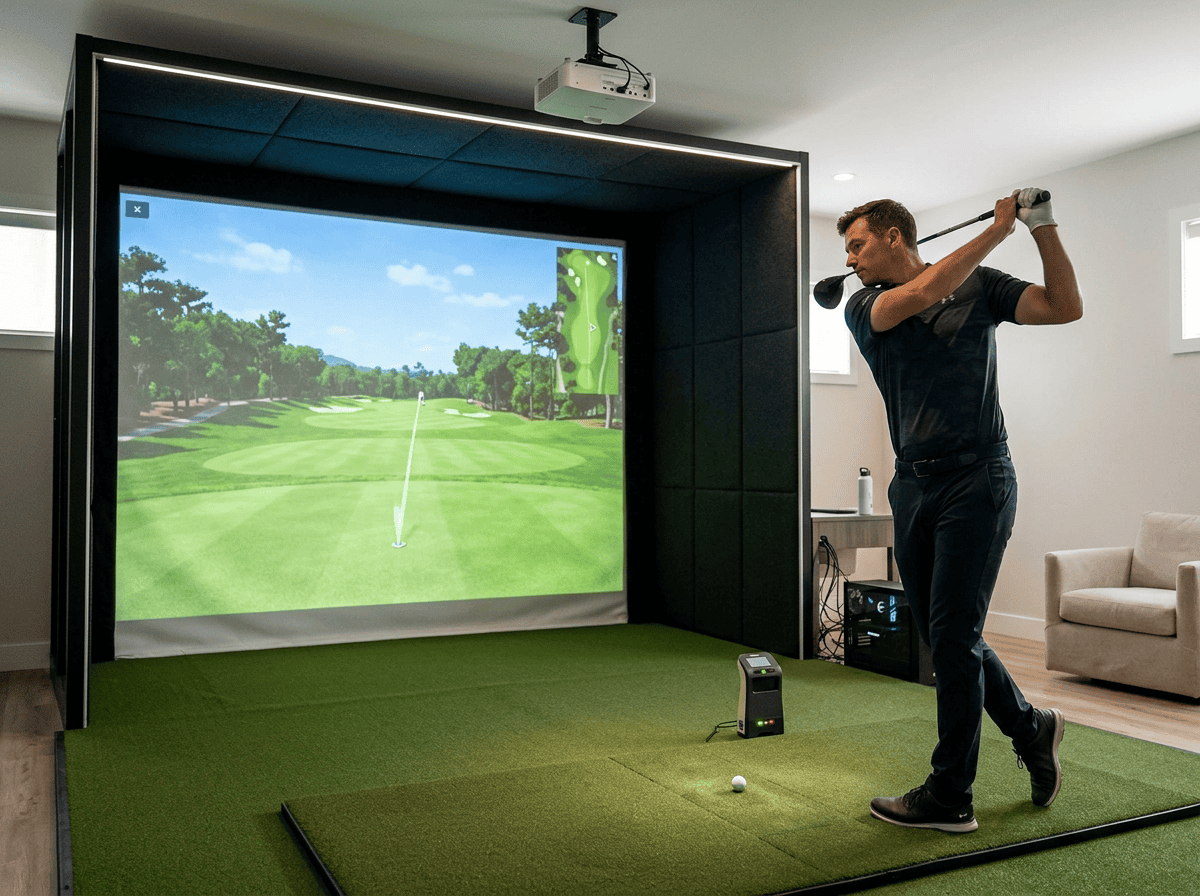
Shot delay breaks your swing rhythm and makes practice feel sluggish. Reducing latency involves adjustments to hardware, software, and setup. These steps help shorten response times for a more natural experience.
Step 1: Optimize Launch Monitor Alignment and Environment
Proper alignment prevents extra processing time. Place your launch monitor 6–8 feet behind the tee, directly in the ball’s flight path. Avoid reflective surfaces, bright lights, or busy backgrounds, as these force sensors to work harder. For photometric systems like SkyTrak, level the hitting mat and square the ball to the unit’s lens. Misalignment forces software corrections, adding milliseconds to shot registration.
Common mistakes:
- Positioning the launch monitor too close or too far from the ball
- Using a thick or uneven mat
- Letting sunlight or shadows interfere with sensors
Step 2: Upgrade or Configure Your PC and Graphics Settings
Processing power affects delay. Use a PC with at least an Intel i5 or Ryzen 5 processor, 8GB RAM, and a dedicated graphics card (e.g., NVIDIA GTX 1660). Close background apps to free resources. In simulator software, lower graphics settings, reduce resolution, turn off anti-aliasing, and cap frame rates at 60 FPS. SkyTrak users can try running the app in compatibility mode (Windows 8 or 7) to prioritize core processes and cut lag.
Step 3: Test and Improve Connection Types
Wired connections remove Wi-Fi variability. Use Ethernet for launch monitors like SkyTrak+ or Foresight Sports GC3 that support direct PC links. If Wi-Fi is necessary, switch to a 5 GHz band and keep the router within 10 feet. For Bluetooth devices, avoid nearby wireless signals (e.g., headphones, phones). Test latency by hitting 10 shots and averaging the delay, consistent times above 3 seconds indicate a connection problem.
Step 4: Sync Projector Refresh Rates and Enable Game Mode
Projector lag adds to shot delay. Match your projector and monitor refresh rates (usually 60 Hz) and use a high-speed HDMI 2.0 or DisplayPort cable. Turn on game mode to skip image processing that increases latency. For ultra-short-throw models, update firmware, as manufacturers often release optimizations for lower input lag. Test response times with a lag tester or smartphone app if possible.
Step 5: Adjust Software Animation and Camera Settings
Animations and camera movements create visual delay. Disable smooth camera transitions and ball flight animations in settings. For SkyTrak, lower the camera frame rate to 60 FPS if hardware struggles. Some software (e.g., TGC 2019) offers a low latency mode, enable it to skip non-essential rendering. When using third-party integrations (e.g., E6 Connect), confirm the software version works with your launch monitor to avoid data translation delays.
Common Mistakes That Increase Simulator Latency
Latency in a golf simulator can turn a smooth swing into a frustrating delay. Many users blame the launch monitor, but the real culprits are often overlooked settings, outdated hardware, or unrealistic expectations. Here are the most common mistakes that add unnecessary lag to your setup, and how to fix them.
Expecting Instant Feedback from Photometric Units
Photometric launch monitors like SkyTrak rely on high-speed cameras to capture ball data at impact. This process takes time. The unit must record the shot, process the images, calculate spin and speed, and send the data to your software. Even the fastest photometric systems average around two seconds of delay before the shot appears on screen.
Expecting near-instant feedback, like you’d get with a radar-based unit, leads to unnecessary frustration. Instead, focus on consistency. If your SkyTrak+ shows a 2.1-second delay every time, that’s normal. Delays longer than four seconds, however, signal a deeper issue, such as a slow computer or network bottleneck.
Running Software on Underpowered Devices
Simulator software demands significant processing power. Running it on an old laptop, budget tablet, or integrated graphics can double or triple your shot delay. SkyTrak, for example, recommends at least an Intel i5 processor, 8GB of RAM, and a dedicated GPU for smooth performance.
We tested SkyTrak on a mid-range gaming PC and a five-year-old office laptop. The gaming PC rendered shots in 2.3 seconds, while the laptop took 5.1 seconds, nearly twice as long. Upgrading your device or closing background apps can cut latency by 30-50%.
Ignoring Projector Settings and Cable Quality
A mismatched refresh rate between your projector and monitor can add 50-100ms of lag. Most projectors default to 60Hz, but if your software runs at 120Hz, the mismatch forces the system to buffer frames. Set both devices to the same refresh rate, ideally 60Hz, to minimize delay.
Cable quality matters too. A standard HDMI cable may not support high refresh rates or 4K resolution, forcing your projector to downsample. Use a high-speed HDMI 2.0 or DisplayPort cable to ensure smooth data transfer. Updating your projector’s firmware can also reduce input lag by improving signal processing.
Neglecting Firmware and Driver Updates
Outdated firmware or drivers can slow down your entire system. Launch monitors, projectors, and graphics cards all rely on software to communicate efficiently. A missing update might force your GPU to use generic drivers, adding 100-200ms of lag.
Check for updates monthly. For example:
- SkyTrak: Firmware updates often include optimizations for shot processing.
- Projectors: New firmware can reduce input lag by improving signal handling.
- GPU drivers: NVIDIA and AMD release updates that improve latency for gaming and simulation software.
Set reminders to check for updates, or enable automatic updates where possible. A five-minute update can save you from weeks of unnecessary delay.
Frequently Asked Questions
What causes golf simulator shot delay and overall system latency?
Golf simulator shot delay stems from the time needed to capture, process, and display shot data. The launch monitor first records impact details, then sends this data to your computer or tablet for processing. Finally, the simulator software renders the shot on screen, which adds to the total delay. Network latency, slow processors, or outdated graphics drivers can further increase this lag.
What shot delay is normal for SkyTrak and SkyTrak+ compared with other launch monitors?
SkyTrak and SkyTrak+ typically show a shot delay of about two seconds, with SkyTrak+ averaging just over two seconds and the original SkyTrak closer to 2.62 seconds. Other launch monitors, like Foresight Sports GCQuad or TrackMan, often achieve delays under one second due to faster processing and direct data transfer. Expect longer delays if your setup includes additional software layers or underpowered hardware.
How can I tell whether lag comes from the launch monitor, computer, or projector?
To isolate the source of lag, test each component separately. First, check the launch monitor’s raw data speed using its native app, if delays appear here, the issue likely lies with the device. Next, run the simulator software on a high-performance computer to see if processing improves. Finally, connect a different display to rule out projector lag, which often occurs when refresh rates mismatch or cables are outdated.
What steps can I take to reduce SkyTrak shot delay and long pauses between shots?
Close background apps to free up processing power. – Update graphics drivers and simulator software to the latest versions. – Use a wired connection instead of Wi-Fi for data transfer. – Reduce graphics settings in the simulator software to lower rendering demands. – Ensure your computer meets or exceeds the recommended specs for SkyTrak, especially for CPU and GPU performance.
Are there launch monitors or setups that provide near-zero shot delay?
Some high-end launch monitors, like Foresight Sports GCQuad or Uneekor EYE XO, achieve near-zero shot delay due to direct data processing and minimal software layers. For the fastest setup, pair these with a powerful computer, a high-refresh-rate display, and optimized software settings. However, even the best systems may still show slight delays, as data processing and rendering take time.
Final Thoughts
Golf simulator shot delay is a common frustration, but understanding its causes puts you in control. We’ve seen that camera-based systems like SkyTrak and SkyTrak+ naturally introduce around two seconds of latency due to data processing, this isn’t a flaw, but a trade-off for accuracy. The real culprits behind excessive lag are often fixable: mismatched refresh rates, outdated hardware, or overlooked software settings. By addressing these, most golfers can cut their delay to the system’s baseline without expensive upgrades.
Start with the basics: sync your projector and monitor to 60 Hz, update all firmware and drivers, and close background apps on your computer. If you’re still seeing delays over four seconds, your device may be underpowered, consider a dedicated gaming PC or a more efficient tablet. Small tweaks, like lowering in-game camera follow settings, can also make a noticeable difference. Remember, the goal isn’t to eliminate delay entirely (which isn’t possible with current tech) but to minimize it until it no longer disrupts your rhythm.
Test your setup after each change. If you’re using SkyTrak, aim for that consistent two-second mark, anything longer, and it’s time to troubleshoot. With a few adjustments, your simulator can feel as responsive as the real thing.