


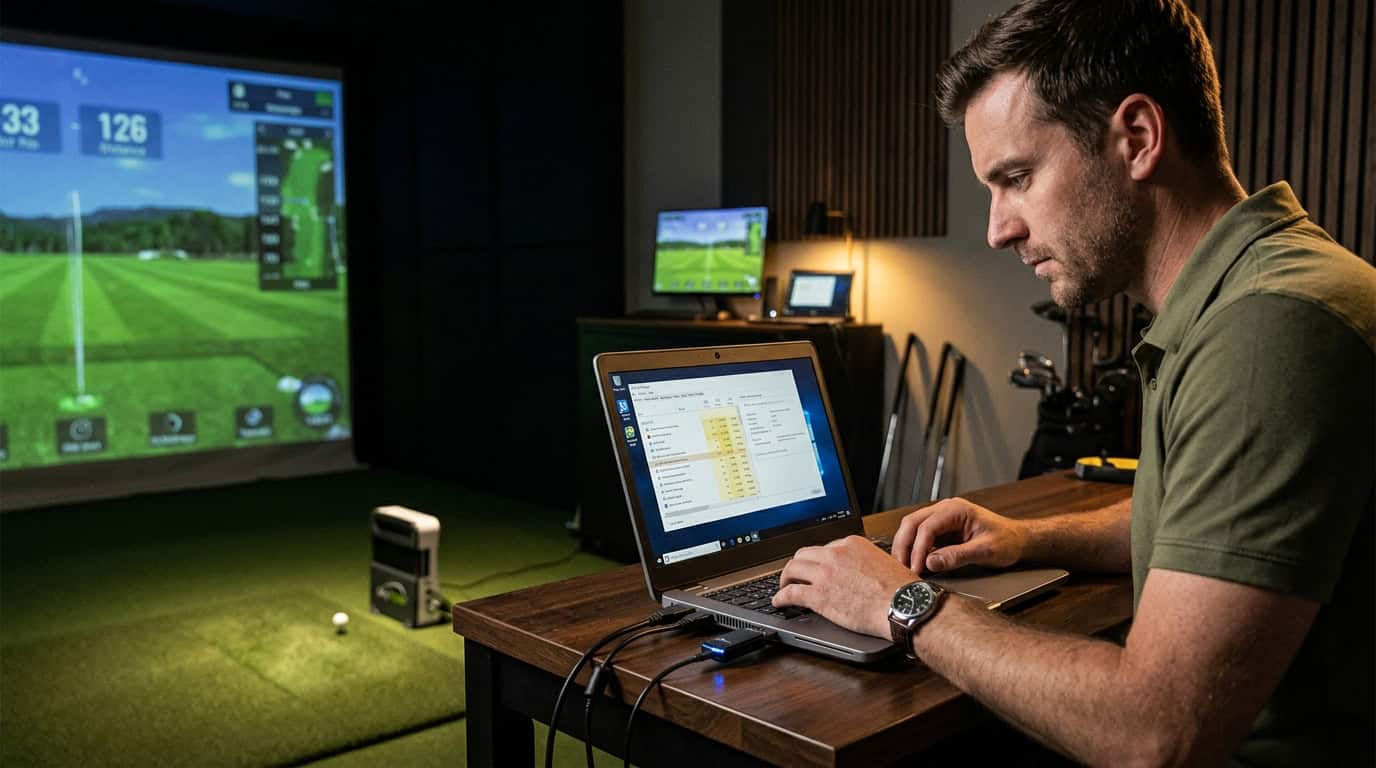
Nothing kills the rhythm of an online golf simulator session faster than a sudden WiFi disconnect or lag spike. One moment you’re lining up a 20-foot putt, the next your screen freezes or your shot data vanishes, leaving you staring at a “connection lost” error. If you’ve ever had to restart your SkyTrak mid-round or watch your ball teleport mid-swing, you know the frustration. The problem isn’t just annoying; it disrupts practice, ruins multiplayer matches, and can even cost you progress in tournaments.
Most golf simulators work offline for basic swings, but online play demands a stable, low-latency connection. Even if your home WiFi handles streaming and gaming without issue, simulators like SkyTrak+ have unique network requirements that standard troubleshooting guides often overlook. The culprit could be anything from bandwidth congestion to a mismatched WiFi band, or even outdated firmware on your launch monitor.
This guide walks you through the most common causes of golf simulator WiFi disconnects and lag, from simple fixes like cache clearing to advanced network tweaks. We’ll cover how to test your connection, optimize router settings, and choose the right hardware to keep your sessions smooth. Whether you’re dealing with random drops during online play or consistent lag in multiplayer, you’ll find step-by-step solutions to get back to uninterrupted golf.
Understanding Golf Simulator Network Demands

Golf simulators blend high-resolution graphics, real-time swing analysis, and multiplayer connectivity. These features create unique network demands that standard home WiFi setups may not handle well. Lag spikes, sudden disconnections, or stuttering gameplay often trace back to mismatched network settings rather than hardware failures.
Do Simulators Need Constant Internet for Gameplay Sessions?
Most golf simulators work offline for core functions like swing practice and local play. However, three key features require a stable internet connection:
- Online multiplayer: Competing against others in real time.
- Course downloads: Accessing new virtual courses from the simulator’s library.
- License verification: Periodic checks to confirm software subscriptions (e.g., SkyTrak+’s annual plan).
SkyTrak+, for example, disconnects if it loses internet during license verification, even if you’re playing offline. Other simulators, like those using cloud-based swing analysis, may freeze mid-swing if the connection drops. Simulators buffer some data locally, but prolonged disconnections (over 30 seconds) force a restart of the session. For more details, see do you need wifi golf simulator.
Bandwidth and Speed Requirements for Online Play
Golf simulators don’t need the same bandwidth as streaming 4K video, but they do require consistent speeds and low latency. Here’s what research shows:
- Minimum download speed: 25 Mbps for single-player online sessions.
- Recommended download speed: 50+ Mbps for multiplayer or high-resolution simulators (e.g., those with 4K graphics).
- Latency (ping): Under 50ms for smooth gameplay; over 100ms causes noticeable lag.
- Upload speed: 10 Mbps minimum for multiplayer (sending swing data to other players).
SkyTrak+ disconnects more frequently on networks with speeds below 25 Mbps, especially if other devices (like smartphones or smart TVs) are streaming simultaneously. The 5GHz WiFi band, while faster, often drops connections with SkyTrak+ due to compatibility issues. Switching to 2.4GHz resolves disconnections in most cases.
For stable online play, prioritize a wired Ethernet connection if your simulator supports it. If WiFi is your only option, use a dual-band router and reserve the 2.4GHz band for the simulator while keeping other devices on 5GHz.
Common Causes of Simulator Online Play Lag and Disconnects
WiFi disconnections and lag during online golf simulator sessions frustrate players trying to compete or download new courses. These issues often stem from four main sources: physical barriers, frequency conflicts, software bottlenecks, and network security settings. Identifying the root cause helps apply the right fix without unnecessary troubleshooting.
Physical Obstructions and Garage WiFi Challenges
Garage or basement setups create unique WiFi obstacles. Thick concrete walls, metal garage doors, and even parked cars block signals between the router and simulator. The SkyTrak+, for example, struggles with consistent connections when placed more than 30 feet from the router in obstructed spaces. Common problem areas:
- Concrete or brick walls: Reduce signal strength by up to 50% compared to drywall.
- Metal objects: Golf clubs, tool chests, and appliances reflect signals, creating dead zones.
- Distance: Most home routers lose 30-50% of their effective range in cluttered spaces.
Moving the router closer or adding a TP-Link T3U Nano USB adapter can improve reception. For permanent setups, a mesh network or WiFi extender placed midway between the router and simulator often resolves dropouts. For more tips, see garage golf simulator setup.
Frequency Band Conflicts (2.4GHz vs 5GHz)
Simulators like the SkyTrak+ require the 2.4GHz band, while modern routers default to 5GHz for faster speeds. When devices auto-switch between bands, connections drop mid-session. Even if the simulator connects initially, background processes on phones or laptops can force a band switch. Quick fixes:
- Separate SSIDs: Create distinct network names for 2.4GHz and 5GHz bands in router settings.
- Band steering off: Disable this feature to prevent automatic switching.
- Channel selection: Use channels 1, 6, or 11 on 2.4GHz to avoid overlap with neighbors’ networks.
A simple test: If the simulator disconnects when someone streams video nearby, band conflicts are likely the cause.
Software Cache and System Resource Bottlenecks
Golf simulator apps accumulate temporary files that slow performance over time. The SkyTrak+ app, for instance, can freeze if its cache isn’t cleared monthly. Background processes like NVIDIA, AMD, or Intel graphics drivers also compete for system resources, causing lag spikes during online play. Steps to reduce bottlenecks:
- Clear cache: Delete temporary files in the simulator app settings.
- Check Task Manager: Close unnecessary programs before launching the simulator.
- Update drivers: Outdated graphics drivers often cause stuttering in multiplayer modes.
- Allocate resources: Set the simulator app to high priority in Windows Task Manager.
For persistent lag, running the simulator in Direct Mode (if available) bypasses some background processes entirely. For hardware recommendations, see system requirements to run a golf simulator.
Firewall, VPN, and Password Obstacles
Security software and network settings frequently block simulator connections without warning. Firewalls may flag simulator traffic as suspicious, while VPNs add latency that disrupts online play. Even incorrect WiFi passwords can cause repeated disconnects if the simulator fails to reauthenticate properly. Common solutions:
- Whitelist the simulator: Add the app to firewall exceptions.
- Disable VPNs: Turn off VPNs before launching online sessions.
- Guest network: Create a separate Guest Network for the simulator to isolate it from other devices.
- Password refresh: Re-enter the WiFi password in the simulator’s network settings.
If disconnects persist, temporarily disabling the firewall can confirm whether it’s the culprit.
Step-by-Step Network Latency Troubleshooting Guide
WiFi disconnects during online play often come from network latency or device settings. These five steps address the most common causes: band interference, cached data, hardware glitches, connection type, and outdated drivers. Follow them in order to isolate and fix the issue.
Step 1: Verify and Isolate the 2.4GHz WiFi Band
Most launch monitors, including SkyTrak+, only connect to the 2.4GHz WiFi band. The 5GHz band, while faster, causes compatibility conflicts. Here’s how to check and switch:
- Log into your router’s admin panel (usually via
192.168.1.1in a browser). - Locate the Wireless Settings or Band Steering section.
- Disable the 5GHz band or rename the 2.4GHz network (e.g.,
MyNetwork_2.4). - Reconnect your simulator to the 2.4GHz network only.
Common mistake: Routers often default to 5GHz for newer devices, which disrupts simulator connectivity.
Step 2: Clear the SkyTrak+ App Cache
Cached data in the SkyTrak+ app can slow performance or trigger disconnects. Clearing it monthly prevents buildup that interferes with real-time data:
- Open the SkyTrak+ app on your device.
- Navigate to Settings > Storage > Clear Cache.
- Restart the app and reconnect to your simulator.
Why it works: Temporary files speed up loading but can corrupt or bloat over time, especially if you switch courses frequently.
Step 3: Perform a Hardware Reset on Your Launch Monitor
A soft reset resolves firmware glitches causing WiFi drops. For SkyTrak+ and similar devices:
- Power off the launch monitor.
- Unplug the power cable and wait 30 seconds.
- Reconnect power and turn the device back on.
- Reconnect to WiFi via the app.
Pro tip: Check for firmware updates in the app’s settings. Manufacturers release patches for known connectivity issues.
Step 4: Switch to a Direct USB Connection
A USB cable bypasses wireless interference and reduces latency for online play:
- Use the USB cable included with your launch monitor.
- Connect the device directly to your PC or tablet.
- In the SkyTrak+ app, select USB Mode under connection settings.
Limitations: USB connections restrict mobility but work well for fixed setups. For wireless use, keep your router within 10 feet of the simulator.
Step 5: Update PC Graphics and Network Drivers
Outdated drivers can throttle data transfer speeds, causing lag or disconnects. Update both:
- Graphics drivers:
- Open Device Manager (Windows) or System Information (Mac).
- Locate your GPU under Display Adapters and select Update Driver.
- Network drivers:
- In Device Manager, expand Network Adapters.
- Right-click your WiFi adapter and choose Update Driver.
Automate updates: Enable automatic driver updates in your PC’s settings to avoid future issues. For NVIDIA GPUs, use the manufacturer’s update tool to streamline the process.
Hardware and Tools to Stabilize Your Connection
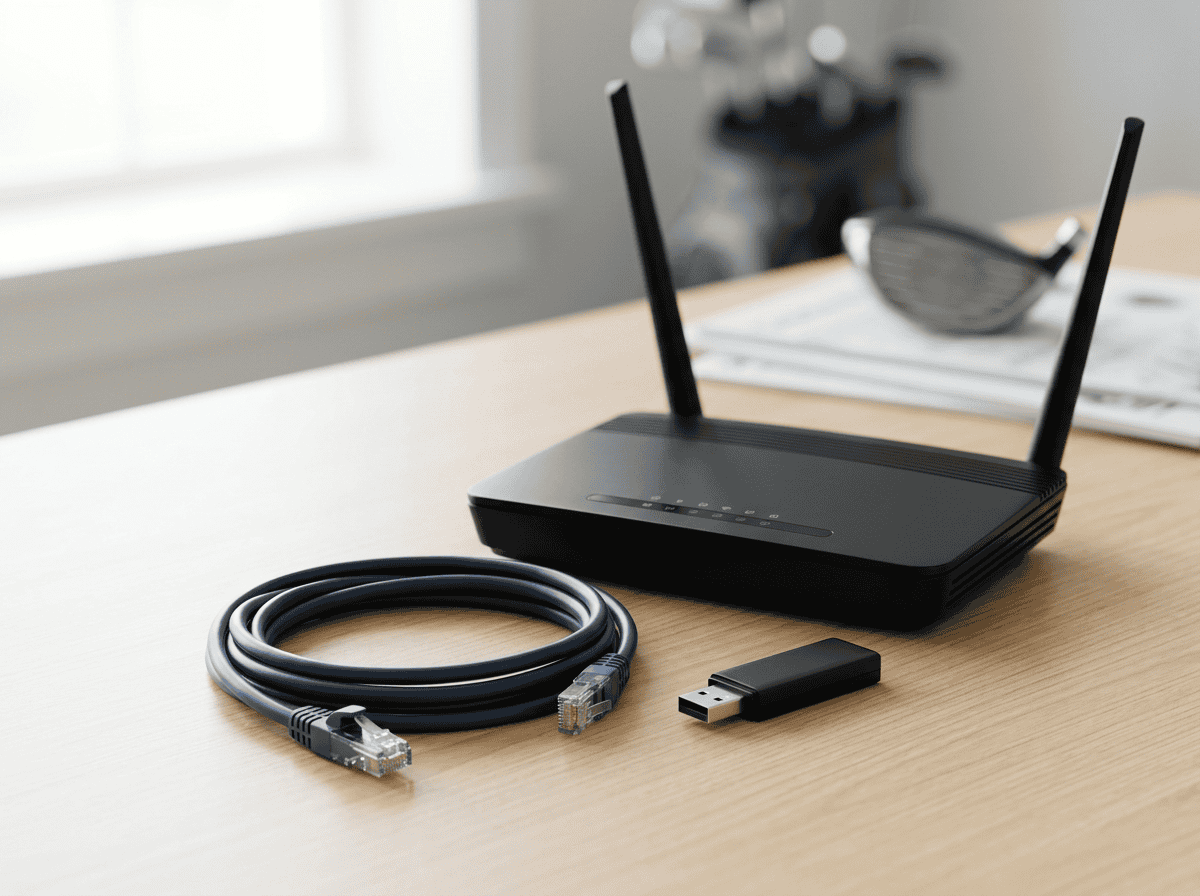
A weak or unstable WiFi connection can disrupt your golf simulator sessions, especially during online play. Upgrading your hardware or adjusting your network setup often resolves lag and disconnects. Below, we cover two effective solutions: USB WiFi adapters for dual networks and choosing between wired Ethernet and mesh WiFi extenders.
Using USB WiFi Adapters for Dual Networks
If your simulator struggles with WiFi interference or bandwidth limitations, a USB WiFi adapter can help. These compact devices allow your simulator to connect to a secondary network without replacing your existing setup. Here’s how they work:
- Dual-band support: Many adapters, like the TP-Link T3U Nano, support both 2.4GHz and 5GHz bands. This lets you dedicate the 2.4GHz band to your simulator (required for devices like SkyTrak+) while using 5GHz for other devices.
- Plug-and-play setup: Most adapters install drivers automatically on Windows or macOS. Simply plug the adapter into a USB port on your simulator PC or launch monitor.
- Reduced interference: By offloading the simulator to a separate network, you minimize conflicts with other household devices (smartphones, smart TVs, etc.).
Common mistake: Using a single-band adapter that only supports 5GHz. This can cause compatibility issues with simulators that require 2.4GHz, like SkyTrak+.
Wired Ethernet vs. Mesh WiFi Extenders
For the most stable connection, wired Ethernet is the gold standard. However, if running cables isn’t practical, mesh WiFi extenders offer a wireless alternative.
Wired Ethernet
- Reliability: A direct Ethernet connection eliminates WiFi interference and latency spikes. Use a Cat 6 or higher cable for speeds up to 1 Gbps.
- Setup: Connect one end of the cable to your router and the other to your simulator’s Ethernet port (if available) or a USB-to-Ethernet adapter for PCs without built-in ports.
- Best for: Fixed simulator setups where cable routing is feasible.
Mesh WiFi Extenders
- Coverage: Mesh systems (e.g., Google Nest WiFi, TP-Link Deco) create a seamless network with multiple access points, reducing dead zones.
- Bandwidth: Some extenders support tri-band WiFi, dedicating one band to backhaul traffic to avoid slowing down your simulator.
- Best for: Large rooms or spaces where running Ethernet cables is difficult.
Pro tip: If using a mesh system, place the nearest node within 10 feet of your simulator for the strongest signal. Avoid placing it behind metal objects or thick walls, which can block WiFi signals.
Frequently Asked Questions
Do simulators need constant internet for gameplay sessions?
Most golf simulators work offline for core gameplay, but require an internet connection for course downloads, online multiplayer, and software updates. For example, SkyTrak+ functions without WiFi for practice sessions, but needs a stable connection for online tournaments or new course installations. If you only use pre-downloaded courses, you can play without internet after the initial setup. For more details, see do you need wifi golf simulator.
Why does SkyTrak+ disconnect during online play?
SkyTrak+ often disconnects due to weak WiFi signals, interference from other devices, or using the 5GHz band instead of the required 2.4GHz. The system also struggles if your router is too far from the simulator or if background apps consume bandwidth. Clearing the app cache monthly helps prevent data buildup that can cause freezing or drops during online play.
How to fix lag during multiplayer golf simulator sessions?
To reduce lag, ensure your internet speed meets the recommended 50+ Mbps for smooth online play. Connect your simulator directly to the router via Ethernet instead of WiFi, and close bandwidth-heavy apps like video streaming. If using WiFi, switch to the 2.4GHz band and position your router closer to the simulator to minimize signal interference.
Final Thoughts
A stable connection is the backbone of smooth online play in golf simulators, but lag and disconnects often stem from overlooked network or hardware issues. We’ve covered the key culprits, from bandwidth demands and interference to outdated firmware and router placement, and walked through targeted fixes like adjusting WiFi bands, clearing cache, and testing latency.
The good news: most problems can be resolved with basic troubleshooting, whether it’s repositioning your router, updating drivers, or disabling conflicting software. Start with the simplest steps: check your internet speed, move your router closer to the simulator, and ensure no physical obstructions block the signal. If issues persist, dive deeper into network settings or consider hardware upgrades like mesh systems or Ethernet adapters. For SkyTrak+ users, remember to stick to the 2.4GHz band and avoid special characters in WiFi passwords, small details that make a big difference.
Don’t let connectivity frustrations cut your practice short. Test your setup after each adjustment, and keep firmware and software updated to prevent future hiccups. With a few tweaks, you’ll spend less time troubleshooting and more time perfecting your swing, no buffering required.