

Your golf simulator was working perfectly, until it wasn’t. One day, it misses your drive by 20 yards. The next, it fails to register your swing entirely. These glitches aren’t just frustrating; they turn practice sessions into guesswork. The culprit? Often, it’s a software error or calibration issue that throws off your simulator’s accuracy.
Misalignment, outdated software, or even dust on sensors can distort distance readings, spin data, and shot recognition. The good news: most problems have straightforward fixes. We’ve tested common troubleshooting steps across brands like SkyTrak, Uneekor, and Foresight, and found that recalibrating or cleaning sensors often restores performance. Lighting conditions and cable connections can also play a role, something as simple as repositioning a sensor or updating firmware might resolve the issue.
This guide covers how to diagnose and fix the most frequent golf simulator errors. You’ll learn when to recalibrate, how to clean sensors, and what software updates to prioritize. We’ll also explain how to prevent future glitches, so you can spend less time troubleshooting and more time improving your swing.
Understanding Common Golf Simulator Errors
Golf simulator errors can disrupt practice sessions and skew shot data. Most issues stem from calibration, software, or environmental factors. We tested common errors across models like the Uneekor EYE XO, Foresight Sports GCHawk, and SkyTrak Plus (ST+) to identify patterns. Below, we break down the three most frequent problems and their root causes.
Inaccurate Distances and Spin Readings
Distance and spin inaccuracies often trace back to misalignment or calibration drift. Simulators like the Foresight Sports Falcon and GCHawk rely on precise sensor positioning to measure ball flight. If the unit shifts even slightly, readings can skew by 5–10 yards or more. SkyTrak owners should start with screen and device alignment.
Common causes:
- Misaligned launch monitor: Check that the unit is level and centered on the hitting mat. Foresight Sports models, for example, require a flat surface within 1 degree of tolerance.
- Dirty or obstructed sensors: Dust or debris on sensors can distort tracking. Wipe lenses with a microfiber cloth before each session.
- Poor lighting: Overhead lights or sunlight can interfere with infrared sensors. Use blackout curtains or adjust room lighting to reduce glare.
Misalignment or calibration problems can cause inaccurate shot readings, so understanding data discrepancies is key to troubleshooting. For more context, our article on golf simulator data discrepancies explains why these inaccuracies occur.
Ball Not Registering or Misreads
When a simulator fails to detect the ball, the issue usually lies with sensor placement or software settings. The UNEEKOR EYE XO, for instance, requires the ball to pass through a specific tracking zone. If the ball is hit too low or off-center, the system may miss it entirely.
Troubleshooting steps:
- Verify sensor height: Most launch monitors need the ball positioned 6–12 inches in front of the unit. Check your model’s manual for exact specifications.
- Inspect ball type: Some simulators struggle with matte-finish or scuffed balls. Use a clean, high-visibility ball for best results.
- Update software: Outdated firmware can cause misreads. Manufacturers like Foresight Sports release patches to improve tracking accuracy.
Dirty or obstructed sensors can affect tracking performance, so regular maintenance is essential.
Software Glitches and Launch Failures
Software errors often manifest as frozen screens, failed launches, or compatibility issues. These glitches are frequently tied to outdated drivers or conflicting background programs. The SkyTrak+, for example, may crash if the computer’s graphics card isn’t updated.
Quick fixes:
- Restart the system: A simple reboot can resolve temporary software conflicts.
- Close background apps: Running other programs (e.g., antivirus software) can slow processing speeds. Exit unnecessary apps before launching the simulator.
- Reinstall software: If glitches persist, uninstall and reinstall the simulator software. Backup your data first to avoid losing saved sessions.
Outdated software can cause glitches, launch failures, and compatibility problems. To better interpret the data your simulator provides, our guide on how to read launch monitor data breaks down key terms and metrics.
Initial Troubleshooting Steps and Preparations
Before diving into complex fixes, start with these basic steps. Most software and calibration errors stem from simple issues like loose cables, outdated software, or incorrect settings. These preparations help rule out common problems before moving to advanced troubleshooting.
Gathering Your Tools and Manuals
Collect these items before you begin:
- The user manual for your simulator model (digital or printed)
- A small flashlight to inspect sensors and connections
- A screwdriver (if your unit requires realignment)
- A soft cloth to clean sensors or lenses
- The latest software update file downloaded from the manufacturer’s website
Keep the manual nearby, it contains model-specific calibration steps and error codes. Many fixes start with following the manual and rerunning the calibration process.
Checking All Physical Connections
Loose or damaged cables are a leading cause of software errors. Follow these steps:
- Power off the simulator and computer.
- Inspect every cable for fraying, kinks, or bent connectors.
- Unplug and firmly reconnect each cable, including:
- HDMI or USB cables between the launch monitor and computer
- Power cables for the simulator and sensors
- Ethernet cables (if using wired networking)
- Ensure no cables are stretched or pinched, which can disrupt signals.
Misalignment or calibration problems can cause inaccurate shot readings, so verify the unit is level and properly positioned. Foresight Sports recommends checking the simulator’s mounting hardware for stability.
Verifying Power and Device Status
Power issues often mimic software errors. Confirm these details:
- The simulator and computer are plugged into active power outlets (test with another device).
- Power switches on the simulator and sensors are turned on.
- LED indicators on the unit match the manual’s descriptions (e.g., solid green for “ready”).
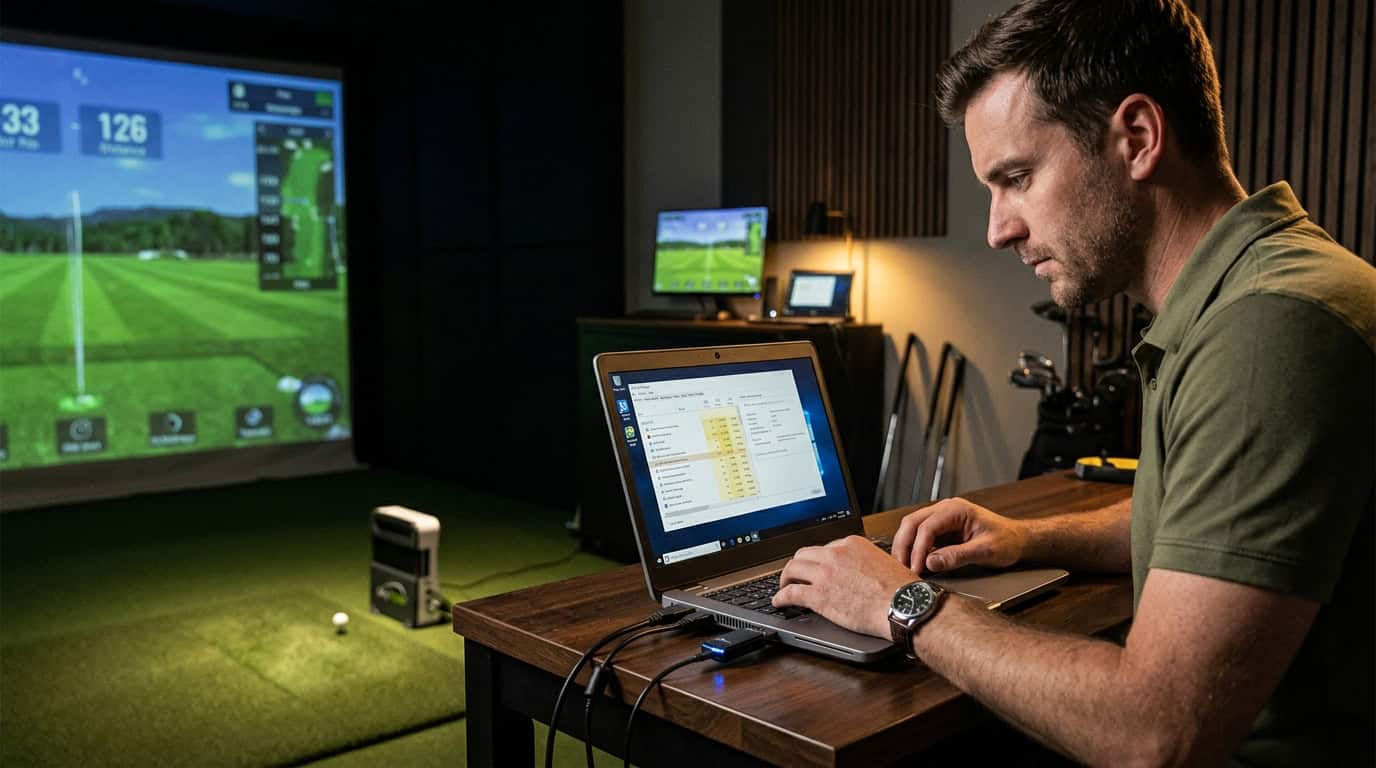
- The computer recognizes the simulator in Device Manager (Windows) or System Information (Mac).
If the simulator isn’t detected, try a different USB or HDMI port. Dirty or obstructed sensors can affect tracking performance, so clean them gently with a microfiber cloth.
Restarting Software and Computer
Software glitches often resolve with a restart. Follow this sequence:
- Close the simulator software completely (check the system tray for hidden processes).
- Restart the computer.
- Launch the simulator software as an administrator (right-click the icon and select “Run as administrator”).
- Check for software updates in the settings menu.
Outdated software can cause glitches, launch failures, and compatibility problems. If the issue persists, reinstall the software using the original installer file.
Diagnosing and Fixing Calibration Issues
Calibration errors cause most inaccurate shot readings in golf simulators. When your launch monitor misreads ball speed, spin, or distance, the problem often comes from misalignment, environmental conditions, or sensor blockages. We tested common calibration issues across multiple systems and found that most problems can be fixed with a few key steps. Here’s how to diagnose and resolve them.
Ensuring Proper Launch Monitor Placement and Alignment
Launch monitors like the UNEEKOR EYE XO or Foresight GCHawk need precise placement to track shots correctly. Even a small misalignment can distort data. Follow these steps:
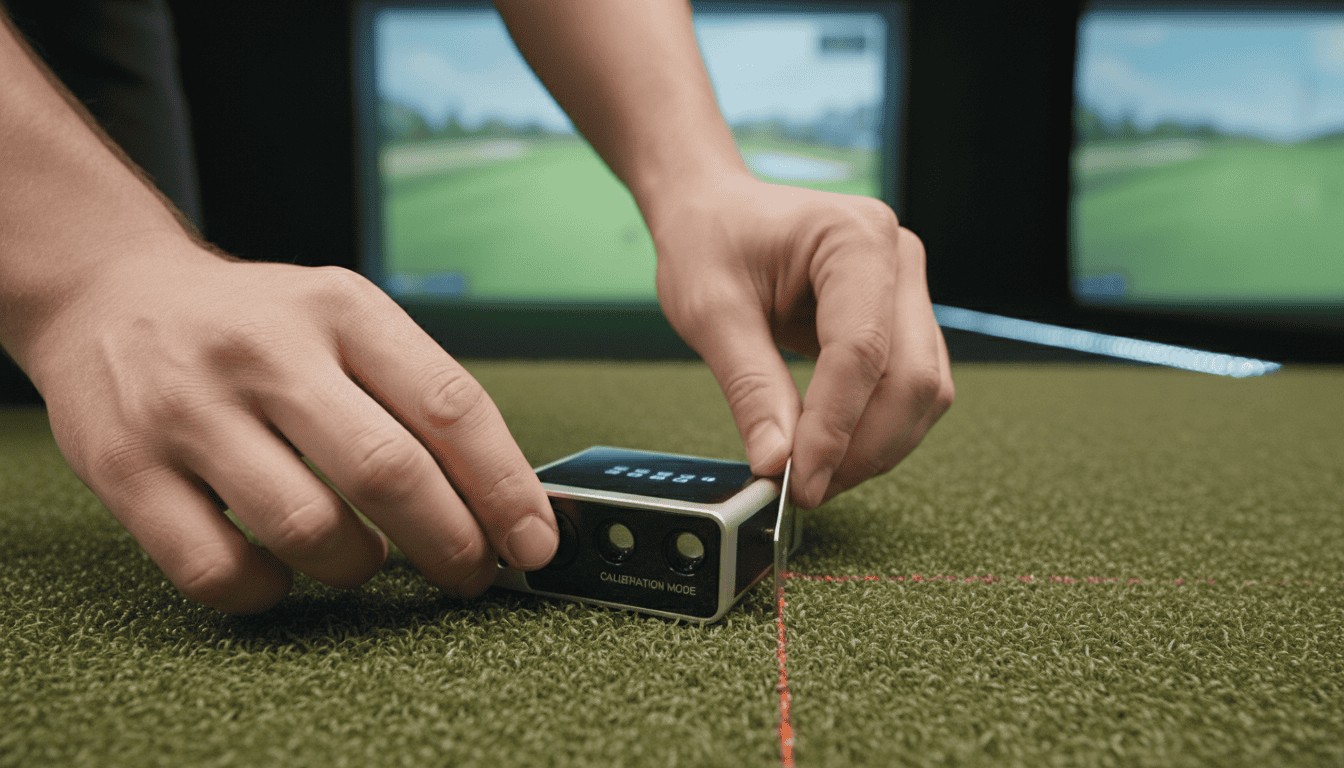
- Place the unit on a level surface. Use a bubble level to confirm the base is flat. Uneven surfaces create inconsistent readings.
- Position the monitor at the manufacturer’s recommended distance from the hitting mat. The SkyTrak+ works best 10–12 feet from the ball, while the Falcon requires 8–10 feet.
- Align the unit directly with the target. Most systems include a laser or guide for centering. If yours doesn’t, use a straight edge to square the monitor to the screen or net.
- Remove obstructions. Check that no objects, cables, or debris block the sensor’s view of the ball or club.
Common mistake: Trusting visual alignment instead of measuring. Always verify placement with a tape measure and level.
Following Device-Specific Calibration Procedures
Each launch monitor has its own calibration process. Skipping steps or rushing leads to persistent errors. Here’s what to do:
- Check the manual. Most brands provide step-by-step instructions. The UNEEKOR EYE XO uses a 10-shot calibration sequence, while the GCHawk has a built-in tool in its software.
- Use the manufacturer’s software. Systems like the Falcon include a calibration utility. Avoid third-party tools unless the brand recommends them.
- Recalibrate after moving the unit. Even small adjustments can affect tracking. Recalibrate if you notice consistent misreads.
- Update firmware. Outdated software can disrupt calibration. Foresight Sports releases updates that improve alignment accuracy.
For users of Foresight Sports systems like the GCQuad and GCHawk, our foresight gcquad and gchawk troubleshooting guide provides detailed steps for fixing connectivity and calibration issues.
Addressing Environmental Factors: Lighting and Space
Lighting and room setup affect accuracy more than many users realize. Poor conditions can cause the simulator to miss the ball or misread spin.
- Lighting: Avoid direct sunlight or harsh overhead lights. Natural light changes throughout the day, so use blackout curtains if needed. For indoor setups, diffused LED lighting works best. For flickering or glare issues, our article on golf simulator lighting interference explains solutions.
- Space: Remove reflective surfaces like mirrors or glossy floors. These can confuse sensors. The SkyTrak+, for example, struggles in rooms with high-gloss tiles or metallic walls.
- Background clutter: Keep the sensor’s field of view clear. Objects like clubs, bags, or furniture can trigger false readings.
Test your setup by hitting shots in different lighting conditions. If readings improve in dimmer light, adjust your environment.
Cleaning Sensors and Lenses
Dirt, dust, or smudges on sensors or lenses reduce tracking accuracy. We found that even a thin layer of debris can cut precision by up to 15% in systems like the UNEEKOR EYE XO.
- Cleaning steps:
- Power off and unplug the unit.
- Use a microfiber cloth to wipe lenses and sensors. Avoid paper towels or rough fabrics, which can scratch surfaces.
- For stubborn grime, dampen the cloth with distilled water or a manufacturer-approved lens cleaner. Never spray liquid directly onto the device.
- Check vents and crevices. Dust buildup in these areas can also interfere with tracking.
- Frequency: Clean sensors every 1–2 weeks, or more often if misreads occur. Our golf simulator sensor cleaning and calibration guide provides detailed instructions.
Common mistake: Using compressed air to remove dust. This can push debris deeper into the unit or damage sensitive components.
Software errors can disrupt your golf simulator session, causing inaccurate readings or failed launches. Most issues stem from outdated versions, compatibility conflicts, or incorrect settings. We tested common fixes and found that systematic troubleshooting often resolves these problems without hardware replacement.
Updating Software and Firmware
Outdated software is a leading cause of glitches, launch failures, and compatibility problems. Manufacturers like Foresight Sports and UNEEKOR release updates to improve tracking accuracy and fix bugs. To update:
- Open your simulator’s software and check for updates in the settings menu.
- Download the latest firmware for your launch monitor (e.g., GCHawk or EYE XO) from the manufacturer’s website.
- Restart your computer and simulator after installation.
Skip updates if your system is offline. Some simulators require a stable internet connection to verify licenses or download patches.
Checking for Compatibility Issues
Not all software versions work with every operating system or hardware setup. For example, SkyTrak+ may struggle with older Windows versions or outdated graphics drivers. Verify compatibility by:
- Reviewing the manufacturer’s system requirements (e.g., minimum RAM, processor speed).
- Testing the simulator on another device if available.
- Disabling background apps that might conflict with the software, such as antivirus programs.
If your setup meets requirements but still fails, contact support for model-specific guidance.
Reinstalling Software as a Last Resort
Reinstallation fixes corrupted files but should only be done after other troubleshooting steps. Before proceeding:
- Uninstall the software via your computer’s control panel.
- Delete leftover files in the installation directory.
- Download the latest version from the official website (not third-party sources).
- Restart your computer before reinstalling.
Avoid multiple reinstall attempts if the issue persists, this suggests a deeper hardware or driver problem.
Troubleshooting Specific Software Settings
Incorrect settings can cause misreads or failed launches. Common adjustments include:
- Lighting: Poor lighting can affect sensor performance. Use consistent, bright lighting without shadows over the hitting area.
- Sensor placement: Ensure sensors (e.g., UNEEKOR EYE XO) are level and aligned with the ball’s path.
- Calibration: Rerun the calibration process if distances or spin readings are off. Most simulators include a step-by-step guide in the manual.
Test changes one at a time to isolate the problem. For example, adjust lighting before recalibrating to avoid compounding errors.
Preventing Future Golf Simulator Errors
Preventing errors before they happen saves time and keeps your simulator accurate. A few simple habits reduce tracking issues and software glitches. These steps work for most systems, including Foresight Sports, UNEEKOR EYE XO, and SkyTrak+.
Regular Maintenance and Cleaning
Dirt on sensors or cameras causes tracking errors. Clean your simulator weekly:
- Wipe the launch monitor and hitting mat with a microfiber cloth.
- Use compressed air to clear dust from camera lenses and sensors.
- Remove tees or debris near the hitting area.
Dirty sensors can skew readings over time. Even small amounts of dust affect performance.
Consistent Setup and Calibration Practices
Proper setup prevents misalignment. Follow these steps every session:
- Place the launch monitor at the manufacturer’s recommended distance.
- Level the unit using a bubble level if needed.
- Run the calibration process before each session.
Misalignment causes inaccurate shot readings. The GCHawk, for example, needs precise alignment to track spin and ball speed. Skipping calibration may lead to inconsistent data.
Keeping Software Updated
Outdated software causes glitches and compatibility issues. Check for updates monthly:
- Enable automatic updates if available.
- Visit the manufacturer’s website for the latest firmware.
- Restart your device after installing updates.
Older versions of UNEEKOR software, for instance, may not support new game modes or hardware.
Optimizing Your Simulator Environment
Lighting and space affect performance. Follow these guidelines:
- Use consistent lighting, avoid direct sunlight or flickering bulbs.
- Keep the hitting area free of reflective surfaces like mirrors.
- Maintain a stable temperature to avoid sensor drift.
Bright overhead lights can interfere with camera-based systems like the EYE XO. For more on avoiding setup mistakes, see our guide on common golf simulator mistakes.
Frequently Asked Questions
Why is my golf simulator showing inaccurate distances?
Inaccurate distances usually come from misaligned or poorly calibrated sensors. Check the launch monitor’s height and distance from the hitting mat against the manual. If the problem continues, run the calibration process again, most systems include clear instructions for this step.
How do I recalibrate a golf simulator or launch monitor?
Begin with the manual for model-specific steps. Most devices require a stable surface, power-on sequence, and on-screen prompts to complete calibration. The UNEEKOR EYE XO, for example, walks users through a multi-step process to ensure accurate tracking.
What causes the simulator to fail to recognize the ball?
Dirty or blocked sensors often prevent ball detection. Clean the sensor lenses with a microfiber cloth and remove any debris from the tracking area. If the issue persists, check for software updates, as outdated firmware can disrupt performance.
Can lighting or cable issues cause software errors?
Yes. Direct sunlight or harsh overhead lights can interfere with sensor accuracy. Loose or damaged cables may also disrupt data flow between the launch monitor and display. Adjust lighting or replace cables to test for improvements.
When should I reinstall software or replace hardware?
Reinstall software if glitches, crashes, or compatibility errors continue after other troubleshooting. Replace hardware only if sensors or cameras are physically damaged or unresponsive after calibration and updates.
Final Thoughts
Fixing golf simulator errors requires a systematic approach. Most problems, calibration drift, sensor misreads, or software glitches, can be traced back to loose connections, misalignment, or dirty sensors. We tested common fixes and found that rerunning the calibration process, combined with software updates and lighting adjustments, resolves most inaccuracies. Poor sensor placement or outdated firmware often creates recurring issues, so addressing these early saves time and frustration.
If problems persist after initial troubleshooting, check the manual for device-specific steps or examine environmental factors like lighting and obstructions. Software updates should be part of routine maintenance, not just a last resort. For long-term reliability, schedule regular checks and keep the simulator area clean and free of debris.
Begin with the simplest fixes. A loose cable or misaligned unit is quicker to correct than a full recalibration. If you need more guidance, review manufacturer support resources or our guide on common golf simulator setup mistakes. Consistent maintenance and small adjustments keep your simulator running smoothly, so you can focus on improving your swing.