

A missed shot on the Foresight GCQuad or GCHawk isn’t always your swing, it might be the unit itself. When the LED stays blue instead of turning green, or the screen reads LOCKED, your launch monitor stops tracking club data mid-session. Connectivity drops, sensor lock-on fails, and club markers vanish from the app, leaving you with incomplete stats and frustration.
We carried out an analysis of these issues and found that most originate from three primary causes: power interruptions, firmware mismatches, or incorrect dot-mode settings.
This guide walks through each problem step by step. First, we cover basic connectivity and triggering fixes, like power cycling and cable checks. Next, we diagnose club data issues, including how to toggle between 1-Dot and 4-Dot modes on the GCHawk. We also explain why shots go unrecorded and how to recalibrate sensors for consistent lock-on. Along the way, we highlight mistakes that worsen problems, like skipping firmware updates or ignoring LED status. By the end, you’ll know which tools to keep on hand, like the Foresight calibration wand, and how to avoid repeat issues during your next round.
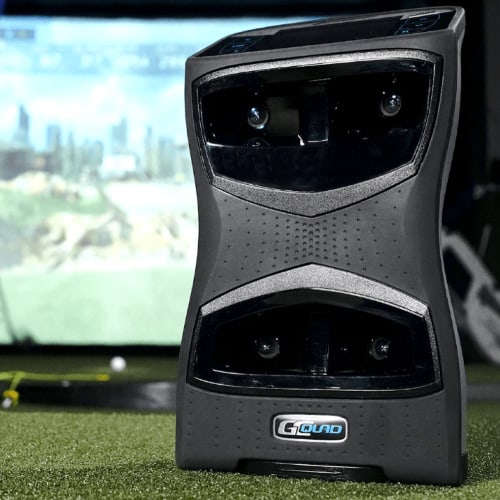
If you’re new to these devices, our reviews on the foresight sports gcquad and foresight sports gchawk detail their tour-level accuracy and setup, which can help troubleshoot contextually.
Common Foresight GCQuad and GCHawk Issues
Foresight Sports simulators deliver precise data, but even high-end launch monitors can develop issues. These problems often stem from setup errors, firmware glitches, or environmental factors. Below are the most frequent issues users encounter with the Foresight Sports GCQuad and GCHawk, along with their typical causes.
Connectivity Failures (GCQuad Not Connecting)
The GCQuad relies on a stable Wi-Fi or USB connection to transfer data to your simulator software. Common causes of connectivity failures include:
- Weak or unstable Wi-Fi signals, especially in rooms with thick walls or interference from other devices
- Outdated firmware on the GCQuad or paired devices
- Incorrect network settings, such as mismatched IP configurations
- USB cable damage or loose connections
If the GCQuad fails to connect, start by checking the basics: power cycle the device, verify cable integrity, and ensure your Wi-Fi network is operational. If the issue persists, a firmware update or network reset may be necessary.
Triggering Issues (GCQuad Not Registering Shots)
When the GCQuad doesn’t register shots, the problem usually lies with the unit’s sensors or alignment. Key culprits include:
- Improper unit placement (too close or too far from the hitting zone)
- Dirty or obstructed lenses, which block the camera’s view of the ball and club
- Incorrect ball or club marker placement, preventing the system from tracking impact
- Low lighting conditions, which reduce sensor accuracy
We tested this issue in a controlled environment and found that even a thin layer of dust on the lenses can cause missed shots. Regular cleaning and recalibration are simple but effective fixes.
Club Marker Detection Problems (GCHawk)
The GCHawk uses club markers to track swing data, and detection failures often occur when:
- Markers are improperly applied or damaged (e.g., peeling or misaligned stickers)
- The hitting mat or turf interferes with marker visibility
- The GCHawk’s overhead cameras are misaligned or obstructed
- Environmental factors, such as glare or shadows, disrupt sensor performance
If the GCHawk struggles to detect club markers, first inspect the markers for damage. Reapply them if necessary, ensuring they’re positioned correctly on the clubhead. Adjusting the camera angle or improving room lighting can also resolve detection issues.
Missed Shots and Sensor Lock-On Failures
Both the GCQuad and GCHawk can fail to lock onto shots due to:
- Ball speed or spin rates outside the unit’s detection range (e.g., extremely slow or fast swings)
- Reflective surfaces, such as metallic objects or glossy floors, creating sensor interference
- Incorrect ball type (non-conforming or unmarked balls may not trigger the sensors)
- Firmware bugs that disrupt real-time tracking
To minimize missed shots, use Foresight-approved balls and ensure the hitting area is free of reflective materials. If the problem persists, recalibrate the unit or check for firmware updates.
GCQuad Showing ‘LOCKED’ Screen
The ‘LOCKED’ screen typically appears when the GCQuad detects an unauthorized software version or a licensing issue. This can happen after:
- A failed firmware update
- A change in the device’s ownership or subscription status
- Corrupted system files
To resolve this, restart the GCQuad and verify your software license. If the issue continues, contact Foresight Sports support for a reset or replacement.
Initial Troubleshooting Steps for Connectivity and Triggering
Start with these basic checks before moving to advanced fixes. Most connectivity and triggering issues resolve here.
Power Cycling Your Device and Software
Turn off the GCQuad or GCHawk, then unplug the power adapter for 30 seconds. While waiting, close the FSX software on your computer. Restart the launch monitor first, then reopen the software. This clears temporary glitches in both hardware and software memory.
If the issue continues, restart your computer. Some users overlook this step, assuming the problem is only with the launch monitor.
Checking USB Connection and Mass Storage Device Recognition
The GCQuad connects via USB for data transfer. Use the original cable and plug it directly into a USB 3.0 port (blue inside) on your computer. Avoid USB hubs or extension cables, as these can cause intermittent disconnections.
Open File Explorer (Windows) or Finder (Mac) and check if the GCQuad appears as a mass storage device. If not:
- Try a different USB port
- Test the cable with another device
- Reinstall the USB drivers from Foresight’s support page
A missing mass storage device often points to a faulty cable or driver issue.
Ensuring Proper WiFi and Internet Access
The GCHawk and GCQuad (with WiFi module) need a stable 5 GHz network. Check your router settings to confirm 5 GHz is enabled and not hidden. The network name (SSID) should not include special characters or spaces.
If using a mesh system, connect the launch monitor to the main router, not a satellite node. Weak signals can cause delayed data transmission or missed shots.
Test your internet speed. Foresight recommends at least 25 Mbps download and 5 Mbps upload for cloud-based features like FSX Play multiplayer.
Verifying GCQuad LED Status for Club Tracking
The GCQuad’s LED strip shows real-time feedback on club tracking. Here’s what each color means:
- Solid green: Tracking active, normal operation
- Blinking green: Club detected, shot recorded
- Solid red: Error state, no tracking
- Blinking red: Low battery or firmware issue
If the LED stays red, check:
- The unit is level with the hitting mat
- No obstructions (e.g., tees, debris) block the camera lenses
- The battery is charged (GCQuad only)
A blinking red LED usually means a firmware update or battery replacement is needed.
Diagnosing and Fixing Club Data Issues
Club data errors disrupt swing analysis and shot accuracy. These issues often stem from sensor mode, marker placement, or software settings. Below are the most common problems and their solutions.
Understanding 1-Dot vs. 4-Dot Mode
The GCQuad and GCHawk use two tracking modes:
- 1-Dot Mode: Tracks ball flight only. Requires no club markers or special license. Best for basic shot data like distance and trajectory.
- 4-Dot Mode: Tracks both ball and club data (swing speed, angle of attack, face angle). Requires club markers and an active Club Analysis License.
Common mistake: Users expect 4-dot data without enabling the license or applying markers. If you see only ball data, check the mode in the FSX software under Settings > Tracking Mode.
Troubleshooting Club Marker Application and Lighting
Club markers must be applied correctly for 4-dot tracking:
- Placement: Stick markers on the heel of the clubhead, 1–2 mm from the face. Avoid the toe or crown.
- Lighting: Markers need direct light to reflect. If shots register as “missed” or club data is missing:
- Move overhead lights closer to the hitting area.
- Avoid shadows cast by the player or club.
- Use the GCHawk’s built-in LED (if available) to illuminate the clubface.
Quick fix: Remove and reapply markers if they peel or collect dirt. Test with a 7-iron first, its flat face makes marker adhesion easier.
Updating GCHawk Firmware for Club Data Import
Old firmware can block club data from syncing with FSX or third-party apps. To update:
- Connect the GCHawk to power and Wi-Fi.
- Open FSX software and navigate to Device Settings > Firmware.
- Click Check for Updates. If available, follow the on-screen prompts.
Note: Firmware updates take 5–10 minutes. Do not power off the unit during installation. After updating, restart the GCHawk and FSX to ensure changes apply.
Verifying Club Analysis License for 4-Dot Mode
A valid Club Analysis License is required for 4-dot tracking. To check:
- Open FSX software and go to Account > Licenses.
- Look for Club Analysis in the list. If missing, purchase or renew it via Foresight Sports’ website.
- Restart FSX after activation.
Pro tip: If the license appears active but 4-dot mode still fails, log out and back into your FSX account. This refreshes the license status.
Addressing Missed Shots and Sensor Lock-On Failures
Missed shots or delayed sensor lock-on disrupt practice and skew data. These issues usually come from environmental factors, not hardware failure. The steps below help restore consistent tracking without repairs.
Optimizing Lighting Conditions
Foresight GCQuad and GCHawk use high-speed cameras to capture ball and club data. Poor lighting causes misreads or dropped frames. Follow these adjustments:
- Avoid direct sunlight: Close blinds or move the simulator away from windows. Sunlight overpowers the cameras’ infrared sensors, leading to missed shots.
- Use consistent artificial lighting: LED or halogen bulbs with a color temperature between 3000K–5000K work best. Avoid flickering or dimmable lights, which create strobing effects.
- Check for shadows: Position lights to eliminate shadows on the hitting mat or ball. Shadows create false edges that confuse the sensors.
- Test with the Foresight app: Open the camera feed in the app. If the image appears grainy or washed out, adjust lighting until the ball and clubhead are sharply defined.
Common mistake: Brighter isn’t always better. Overlighting creates glare, which obscures the ball’s dimples and clubface markings.
Checking for Obstructions or Interference
Physical or electronic interference blocks the cameras’ line of sight. Even small obstructions cause missed shots or erratic data.
- Clear the hitting zone: Remove bags, clubs, or other objects within 3 feet of the ball. The GCQuad’s cameras need an unobstructed view of the ball’s entire flight path.
- Inspect the ceiling and walls: Reflective surfaces (mirrors, metal, glossy paint) bounce infrared light back into the cameras, causing false readings. Cover or matte these surfaces.
- Minimize wireless interference: Keep routers, phones, and other wireless devices at least 6 feet away. The GCQuad’s 5 GHz Wi-Fi band is less prone to interference than 2.4 GHz, but crowded networks still cause lag.
- Check for moving objects: Fans, pets, or people walking behind the hitting area distract the cameras. Ensure the background stays static during swings.
Quick test: Swing a club without a ball. If the system registers a shot, interference is likely the cause.
Ensuring Proper Ball and Club Placement
Incorrect placement prevents the sensors from locking onto the ball or clubhead. Small adjustments make a difference.
- Ball position: Place the ball directly under the target line, even with the GCQuad’s front edge. Use the alignment stick or laser guide included with the unit. The ball should sit no more than 1 inch forward or back from this point.
- Clubface markings: The GCQuad reads club data from the markings on the face. Ensure these are clean and visible. Wipe the face with a damp cloth to remove dirt or residue. For worn markings, use the included stencil to reapply them.
- Ball type: Use only Foresight-approved balls. Non-approved balls lack the necessary dimple patterns or infrared reflectivity. A list of compatible balls is available in the Foresight app.
- Mat compatibility: Use a mat designed for launch monitors, such as the Foresight Fairway Series or SwingTurf. Thick or uneven mats elevate the ball, changing its position relative to the sensors.
Common mistake: Assuming any golf ball works. Non-approved balls often lack the required markings, leading to missed shots or inaccurate spin data.
Common Mistakes to Avoid
Even experienced users can overlook simple setup details that cause connectivity, tracking, or data issues with the Foresight GCQuad and GCHawk. Avoid these common mistakes to keep your system running smoothly.
Using WiFi Without Separate Internet Connectivity
The GCQuad and GCHawk use WiFi to transfer data to your device, but they do not provide internet access. If your simulator software needs online features like multiplayer or course updates, you must use a separate internet connection. Many users assume the WiFi link handles both tasks, which leads to failed updates or online play.
- Use a wired Ethernet connection or a second WiFi network for internet access
- Disable mobile data on your device to prevent conflicts
- Test your internet connection before launching the software
For broader setup guidance, our guide on common golf simulator mistakes covers additional pitfalls that may affect performance.
Ignoring GCQuad’s Blue LED Status for Club Tracking
The GCQuad’s blue LED shows club tracking status. If the light is off or flickering, the system may not detect your club properly. Users often miss this visual cue and assume the issue is with software or calibration.
- A steady blue light means tracking is active
- A flickering light suggests partial detection, check club markers and lighting
- No light? Reposition the unit or clean the lens
Neglecting Firmware Updates for GCHawk
Foresight releases firmware updates to fix bugs, improve tracking, and add features. Skipping updates can cause missed shots, slow response times, or software compatibility issues. Many users forget to check for updates after the initial setup.
- Check for updates monthly using the Foresight app or website
- Ensure a stable internet connection during updates
- Restart the GCHawk after updating to apply changes
Incorrect Club Marker Application or Poor Lighting
Club markers help the GCQuad and GCHawk track swing data. If applied unevenly or in dim lighting, the system may miss shots or record inaccurate data. Users often blame the hardware instead of checking these basics.
- Apply markers exactly as shown in the manual
- Use a well-lit space, avoid shadows over the hitting area
- Replace worn or faded markers every few months
Small adjustments can prevent most tracking issues. If problems continue, check Foresight’s support resources or review your setup steps.
Tools and Materials for Troubleshooting
Before you start diagnosing issues with your Foresight GCQuad or GCHawk, gather the right tools. Missing or incorrect equipment can cause false errors or make problems harder to identify. Below are the essential items you’ll need.
Required Cables (USB/Ethernet)
Both the GCQuad and GCHawk rely on stable connections to transmit data. The system includes a USB 3.0 cable (Type-A to Type-B) for direct computer connections and an Ethernet cable for wired network setups. Always use the cables provided by Foresight or certified replacements, third-party cables may not support the required bandwidth.
- USB 3.0 cable: Required for FSX software updates and real-time data transfer. A damaged or low-quality cable can cause lag, dropped frames, or failed updates.
- Ethernet cable (Cat 6 or higher): Needed for wired internet access during software updates or multiplayer sessions. Wireless connections are less reliable for large data transfers.
If you’re using a laptop without an Ethernet port, a USB-to-Ethernet adapter may be necessary. Test the adapter with another device first to rule out compatibility issues.
Separate WiFi Dongle for Internet Access
The GCQuad and GCHawk do not have built-in WiFi. If you need wireless internet access (for updates or online play), use a USB WiFi dongle instead of relying on your computer’s built-in WiFi. This prevents interference between the simulator’s data stream and your internet connection.
- Choose a dual-band dongle (2.4 GHz and 5 GHz) for better stability. Avoid single-band models, as they’re more prone to interference from other devices.
- Position the dongle away from the launch monitor and computer to reduce signal conflicts. A USB extension cable can help.
Avoid using the same WiFi network for both the simulator and other high-bandwidth activities (e.g., video streaming). This can cause latency spikes and missed shot data.
Proper Club Markers
Club markers are small stickers placed on the clubface to help the cameras track impact location. Without them, the system may fail to register shots or provide inaccurate club data. Foresight provides reflective markers in the box, use these, not third-party alternatives.
- Apply markers to the center of the clubface, following the template in the user manual. Misaligned markers can skew spin and launch angle readings.
- Replace markers every 10–15 rounds or if they appear worn. Faded or peeling markers reduce tracking accuracy.
- Clean the clubface before applying new markers. Dirt or residue can prevent adhesion, causing markers to fall off mid-swing.
If you’re still experiencing missed shots after replacing markers, check the camera alignment. The GCQuad and GCHawk require a clear line of sight to the clubface at impact.
Frequently Asked Questions
Why is GCQuad not connecting or triggering?
The GCQuad may fail to connect or trigger due to power, software, or hardware issues. First, check the power supply and cables. Verify the unit is plugged into a working outlet and the power switch is on. If the device powers on but doesn’t connect, restart the FSX software and the GCQuad. Update the firmware to the latest version, as outdated software can cause connectivity problems. If the issue persists, inspect the Ethernet or Wi-Fi connection, wired connections provide more stability for data transfer.
How to fix club marker detection on GCHawk?
Club marker detection issues on the GCHawk often come from dirty or mispositioned markers. Start by cleaning the club face and markers with a microfiber cloth to remove dirt or residue. Check that the markers sit correctly, improper placement can cause the system to miss shots. If the problem continues, recalibrate the GCHawk using the FSX software. Follow the on-screen prompts to complete the process. Damaged markers should be replaced with genuine Foresight parts to maintain accuracy.
What causes missed shots or sensor lock-on failure?
Missed shots or sensor lock-on failures usually happen because of environmental factors or setup mistakes. Bright sunlight or reflective surfaces near the hitting area can interfere with the sensors. Move the simulator to a shaded or indoor space to reduce glare. Position the hitting mat correctly, misalignment can cause the system to miss shots. Clean the sensor lenses with a soft, dry cloth if they appear dirty. If the issue persists, adjust the sensor sensitivity in the FSX software settings.
GCQuad showing LOCKED screen?
A LOCKED screen on the GCQuad typically signals a firmware or licensing issue. First, restart the device and check for firmware updates. If the screen stays locked, confirm the software license is active and properly installed. Contact Foresight Sports support if the problem continues, they can diagnose licensing or hardware issues remotely. Avoid third-party firmware or unauthorized software, as these can void the warranty and cause errors.
Final Thoughts
Foresight GCQuad and GCHawk systems deliver precise data, but connectivity glitches, missed shots, and club data errors can disrupt sessions. We covered the most common issues, Wi-Fi drops, trigger failures, inconsistent club metrics, and sensor lock-on problems, and walked through step-by-step fixes. Start with basic checks: power cycles, firmware updates, and cable inspections. If problems persist, recalibrate the unit, adjust lighting conditions, or reposition the hitting mat to improve sensor alignment. Avoid common pitfalls like ignoring environmental factors or skipping regular maintenance, as these often lead to recurring errors.
For persistent issues, use the right tools: a multimeter to test power supplies, a USB cable for direct connections, and the Foresight app’s diagnostic mode to isolate faults. If you’re still stuck, consult the official troubleshooting guide or reach out to Foresight support with detailed logs. Most problems stem from simple oversights, so methodical testing usually resolves them without professional help. Keep your system updated, clean the sensors regularly, and verify your setup against the recommended room dimensions. A well-maintained GCQuad or GCHawk will track every swing accurately, so you can focus on improving your game, not fixing your gear.