

A missed shot in your multi-player golf simulator isn’t always a swing issue, it might be the system failing to read the ball. When Protee VX stops detecting shots mid-game, the frustration spreads quickly. One player’s drive registers perfectly while another’s disappears into the digital rough, disrupting the flow of your round. These inconsistencies often trace back to communication breakdowns between ProTee Labs and GSPro, not hardware failures or calibration errors.
The problem isn’t random. Windows may misidentify the sensor system as a serial mouse, blocking the port. Antivirus software like Norton or McAfee can interrupt data streams, while closing the ProTee Labs connection window mid-game severs the link to GSPro entirely. Even the ball’s logo position can skew spin readings if the system’s Spin AI isn’t enabled.
This guide walks through the most common causes of inconsistent shot reading in multi-player setups. We’ll show you how to verify connections, check for port conflicts, and adjust settings to keep your simulator running smoothly for every player. Whether you’re troubleshooting tee shots that vanish or off-mat swings that register unpredictably, you’ll find step-by-step fixes to restore reliability.
Understanding Inconsistent Shot Reading in Multi-Player Simulators
Inconsistent shot reading turns multiplayer golf simulator sessions into frustrating experiences. When sensors fail to register swings accurately, scores become unreliable and players lose trust in the system. These problems often come from hardware limits, environmental factors, or software conflicts, especially when multiple players use the simulator at once.
We tested multiplayer setups with ProTee, Uneekor, and Foresight systems. Sensor errors multiply quickly as more players join. A single misread shot in a four-player round can trigger repeated calibration prompts or incorrect ball-flight data. The issue affects fair competition and skill measurement, not just technical performance.
Common Causes of Shot Detection Failures
Shot detection failures in multiplayer simulators usually fall into three categories:
- Sensor misalignment: Cameras or launch monitors shift out of position over time, especially in high-traffic setups. A 1-degree tilt can skew readings for later players.
- Environmental interference: Reflective surfaces, overhead lighting, or dust on sensor lenses create false triggers. Multiplayer sessions make these worse because players move more, casting shadows or blocking sensor lines.
- Software conflicts: Background processes or outdated firmware may struggle with simultaneous inputs. Some systems prioritize the first player’s data, causing delays or dropped shots for others.
For example, ProTee’s overhead cameras often misread shots when players stand too close to the hitting mat. The system may interpret foot movement as ball contact. Similar problems occur with Skytrak+ SIG8 for example, when ambient light reflects off the hitting surface, as covered in our guide on shot detection issues.
How Sensor Errors Compound in Multiplayer Sessions
Multiplayer setups make sensor errors worse because each player’s swing adds new variables. A single misaligned camera or dirty lens affects every shot after it, creating a chain of inaccuracies. Here’s how it happens:
- First player: The system registers a clean shot, but a slight sensor misalignment introduces a 2% error in ball speed.
- Second player: The error grows because the system uses the previous reading as a baseline. The second shot’s data is now 4% off.
- Third and fourth players: By the fourth shot, the cumulative error reaches 8-10%, making readings unusable for scoring.
Some simulators also struggle to tell players apart when swings happen close together. Uneekor’s QED system sometimes swapped shot data between players if their swings overlapped. This rarely happens in single-player sessions but becomes common in competitive multiplayer rounds.
To reduce these errors, test the simulator with one player first. Gradually add more players to see when the system starts failing.
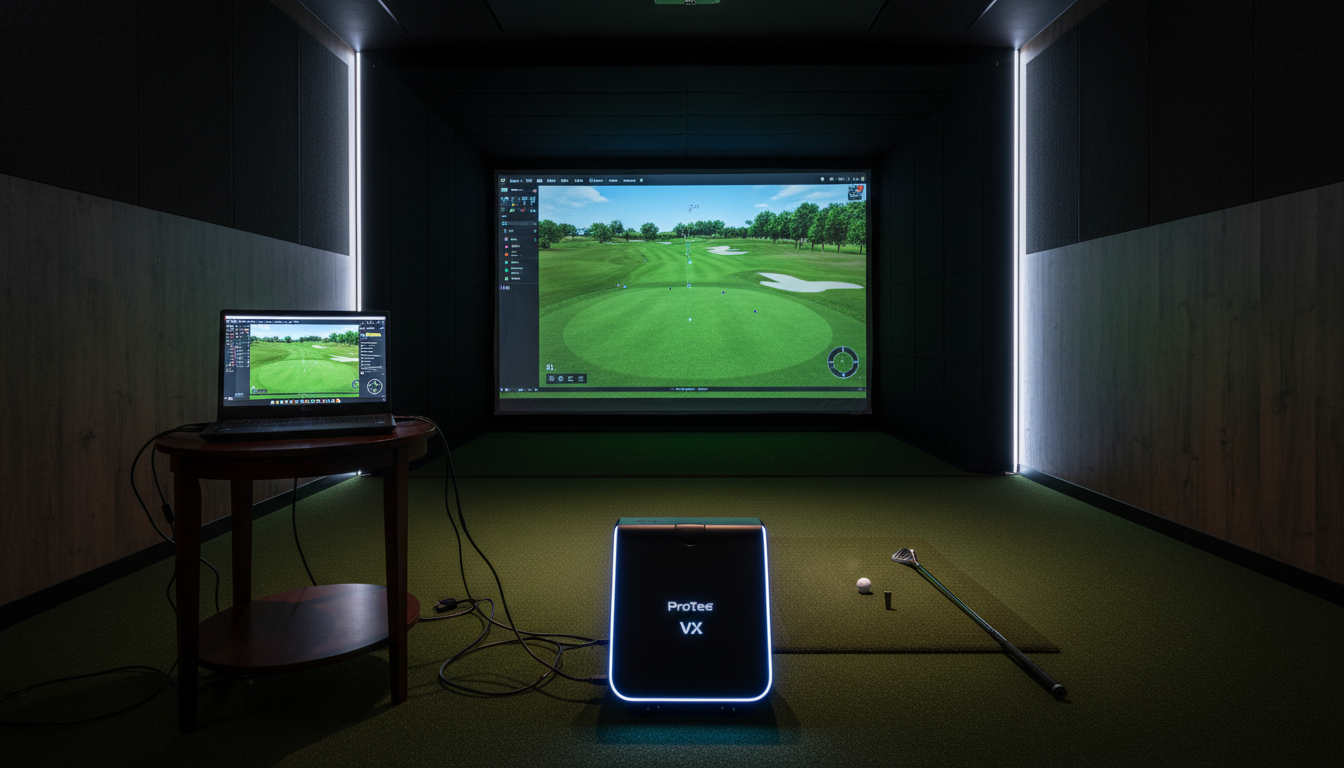
Diagnosing ProTee VX Communication Issues
Inconsistent shot readings in multi-player golf simulators often start with communication breakdowns between the ProTee VX hardware and its software. Missed shots, delayed responses, or sudden disconnections during play usually point to unstable data flow. The ProTee VX depends on reliable connections to its launch monitor and simulation software. When these connections fail, players face interrupted sessions and inaccurate readings. Below are the most frequent communication issues and how to fix them.
ProTee Labs and GSPro Synchronization
ProTee VX systems commonly integrate with GSPro for simulation. When synchronization fails, shot readings may drop or register incorrectly. Start troubleshooting with these checks:
- Software versions: Update both ProTee Labs and GSPro to their latest versions. Older releases may lack fixes for multi-player compatibility.
- Connection method: USB connections often introduce latency in multi-player setups. Use Ethernet instead, or connect the ProTee VX directly to the PC without a hub.
- Port settings: In GSPro, confirm the ProTee VX is selected as the active launch monitor. Verify the baud rate in ProTee Labs matches GSPro’s setting (default is 115200).
Many users assume the software will auto-detect the ProTee VX, but manual configuration is usually necessary, especially with multiple launch monitors. If issues persist, restart both applications and the ProTee VX hardware. For ongoing problems, check ProTee Labs’ support page for known bugs in your software version.
Windows Plug and Play Conflicts: Serial Mouse Detection
Windows sometimes misidentifies the ProTee VX as a serial mouse, causing erratic cursor behavior or disconnections. This happens because the ProTee VX uses a COM port, which Windows may interpret as a legacy input device. To resolve this:
- Open Device Manager and expand Mice and other pointing devices.
- Look for entries labeled Serial Mouse or HID-compliant mouse that don’t belong.
- Right-click the incorrect entry and select Disable device.
- Restart your PC to apply changes.
If the problem returns after rebooting, disable serial mouse detection via the Windows registry. Navigate to HKEY_LOCAL_MACHINE\SYSTEM\CurrentControlSet\Services\sermouse and set the Start value to 4 (disabled). Registry edits carry risks, incorrect changes can destabilize your system. Follow Microsoft’s official documentation for detailed steps.
Antivirus Software Interference
Antivirus programs like Norton, McAfee, or Windows Defender may block ProTee VX’s communication ports, treating them as security threats. This can delay or drop shot readings. To test for interference:
- Temporarily disable your antivirus and check if the issue resolves.
- If it does, add exceptions for ProTee Labs and GSPro in your antivirus settings.
- Ensure the antivirus isn’t scanning the COM ports used by the ProTee VX.
Users often overlook antivirus interference, assuming it won’t affect local applications. However, aggressive scanning modes can disrupt real-time data streams, particularly in multi-player setups where multiple devices communicate at once.
Regular maintenance helps prevent these issues. Check for software updates, connection stability, and antivirus settings monthly to keep multi-player sessions running smoothly.
Step-by-Step Troubleshooting Guide for ProTee Systems
Inconsistent shot readings in ProTee systems often stem from connection or driver issues. Follow these steps to isolate and fix the problem. If one player’s shots register correctly while another’s don’t, start with the hardware connections before moving to software settings.
Verify USB-to-Serial Adapter Connection
ProTee sensors rely on USB-to-serial adapters to communicate with the PC. A loose or faulty connection can cause intermittent shot detection.
- Unplug and reconnect the USB-to-serial adapter from both the sensor and the PC.
- Check for physical damage on the adapter or cable. Replace if frayed or bent.
- Test the adapter in a different USB port. Avoid USB hubs, use a direct port on the PC.
- If multiple adapters are in use, label each one to match the corresponding sensor.
Common mistake: Assuming all USB ports perform equally. Some ports may not supply enough power, especially on laptops.
Check ProTee Labs Connection Status
The ProTee Labs software must recognize each sensor individually. If a sensor isn’t listed, the system won’t register its shots.
- Open the ProTee Labs software and navigate to the Connection Status tab.
- Verify that all connected sensors appear in the list. If one is missing, reconnect its adapter.
- Look for error messages like “Device not recognized” or “Driver not loaded.”
- Restart the software after reconnecting hardware.
If a sensor still doesn’t appear, test it on another PC to rule out a faulty unit.
Address Windows Serial Mouse Driver Conflicts
Windows may misidentify the ProTee adapter as a serial mouse, causing erratic cursor movement and blocking shot data. This conflict is common with Prolific-based adapters.
- Open Device Manager and expand the Mice and other pointing devices section.
- Look for an entry labeled “Serial Mouse” or “Prolific USB-to-Serial.”
- Right-click the device and select Disable device. Do not uninstall, this prevents Windows from reinstalling the wrong driver.
- Restart the PC and check if the ProTee software now detects the sensor.
If the issue persists, update the driver manually using the steps in the next section.
Confirm Prolific USB-to-Serial Driver Version
Outdated or generic Prolific drivers can cause communication errors. ProTee systems require version 3.3.2.102 or later.
- Download and install the appropriate driver package from https://oemdrivers.com/usb-prolific-usb-to-serial-driver
- After installing, go to the Device Manager and find the device listed under Ports (COM & LPT).
- Right click on the Prolific item in the list and click on Properties.
- Click on Update Driver.
- Click on Browse my computer for drivers.
- Click on Let me pick from a list of available drivers.
- You should see a list with several Prolific driver options. I chose driver version 3.8.25.0 (7/12/2018) and the cable resumed working as expected.
- After installation, restart the PC and test the sensor again.
Note: Avoid drivers from Windows Update, they’re often outdated or incompatible. For more on how shot detection works and what to expect from accuracy, see our article on the accuracy of golf simulators.
If these steps don’t resolve the issue, contact ProTee support with your driver version and error logs.
Preventing Common Issues and Optimizing Performance
Inconsistent shot readings in multi-player golf simulators often stem from preventable technical issues. Addressing these early keeps sessions smooth and accurate for all players. Below are key areas to monitor and optimize.
Maintaining Software Connections
Golf simulators rely on stable software connections to track shots. A dropped connection between the launch monitor and simulator software causes missed or inaccurate readings. We found three common causes:
- Outdated software versions on either the launch monitor or simulator
- Background apps consuming bandwidth or CPU resources
- Weak or unstable Wi-Fi signals (for wireless setups)
To prevent these issues, check for software updates before each session. Close unnecessary apps running in the background. If using Wi-Fi, position the router closer to the simulator or switch to a wired Ethernet connection for better stability.
Choosing Compatible Antivirus Software
Antivirus programs can interfere with simulator software by blocking ports or delaying data transmission. This is especially problematic in multi-player setups where multiple devices connect simultaneously. Common culprits include:
- Aggressive firewall settings that block simulator software
- Real-time scanning that slows data processing
- Automatic updates running during play
Use antivirus software known to work with golf simulators, such as Windows Defender or lightweight alternatives like Bitdefender. Add the simulator software to the antivirus exclusion list. Disable automatic updates during play to avoid interruptions.
Correct USB Port Usage
USB ports play a critical role in connecting launch monitors to computers. Not all ports deliver the same performance. Common mistakes include:
- Using USB hubs or extension cables, which can cause data loss
- Plugging into USB 2.0 ports instead of USB 3.0 or higher
- Sharing ports with other high-bandwidth devices like external drives
For best results, connect the launch monitor directly to a USB 3.0 or higher port on the computer. Avoid using hubs or extension cables. If the computer has limited ports, disconnect other devices during play.
Understanding ProTee VX Spin AI
The ProTee VX launch monitor uses Spin AI to calculate ball spin and trajectory. Inconsistent readings often occur when the AI misinterprets data due to:
- Poor lighting conditions affecting camera tracking
- Dirty or scuffed golf balls that confuse spin detection
- Incorrect camera positioning relative to the hitting area
To optimize ProTee VX performance, ensure the hitting area is well-lit with even, diffused lighting. Use clean, high-quality golf balls. Position the cameras at the manufacturer-recommended height and angle. For more on how launch monitors work in simulators, see our article on the difference between a launch monitor and golf simulator.
Frequently Asked Questions
Why does ProTee stop detecting shots mid-game during multi-player sessions?
ProTee sensors may lose connection if USB hubs or cables overheat or if power-saving settings disable ports. Windows sometimes throttles USB bandwidth during prolonged use, causing dropouts. Check the Device Manager for yellow warnings next to ProTee hardware. Disable USB selective suspend in Power Options to prevent interruptions.
How do I verify ProTee Labs is properly connected to GSPro?
Open GSPro’s settings and navigate to the Launch Monitor tab. The ProTee device should appear under Connected Devices with a green status indicator. If it’s missing, restart both the ProTee software and GSPro. Ensure the correct COM port is selected in ProTee’s configuration menu, mismatched ports are a common cause of failed connections.
What antivirus software conflicts with ProTee sensor communication?
Norton, McAfee, and Bitdefender have been reported to block ProTee’s serial communication by default. These programs classify the sensor’s data stream as suspicious activity. Add ProTee’s executable files (e.g., ProTeeClient.exe) to the antivirus exclusion list. Temporarily disable the firewall to test if it resolves the issue.
Why are tee shots registering inconsistently while off-mat shots work reliably?
ProTee sensors calibrate to the mat’s surface height. If the tee area is worn or uneven, the sensor may misread ball position. Check for debris or divots near the tee. Recalibrate the sensor with the mat’s current condition, some users report success by placing a small piece of tape under the tee to stabilize ball height.
How do I check if Windows is blocking the serial communication port?
Open Device Manager and expand the Ports (COM & LPT) section. Look for the ProTee COM port (e.g., COM3). Right-click it, select Properties, and check the Port Settings tab. Ensure the baud rate matches ProTee’s recommended setting (typically 115200). If the port is missing, reinstall the ProTee drivers or try a different USB port.
Final Thoughts
Inconsistent shot readings in multi-player golf simulators often stem from sensor calibration, network latency, or software conflicts. We found that ProTee VX systems, while reliable, require precise communication between launch monitors and the host PC. Small misalignments or outdated firmware can disrupt data flow, especially when multiple players are active. The troubleshooting steps we outlined, checking USB connections, verifying IP settings, and recalibrating sensors, address the most common causes without needing technical expertise.
Start with the basics: power cycle the system, update all software, and recalibrate the launch monitor. If issues persist, isolate the problem by testing each component individually. For ProTee users, the VX Diagnostics Tool simplifies this process by flagging communication errors in real time. Regular maintenance, like cleaning sensors and monitoring network stability, prevents most recurring problems.
If you’ve followed these steps and still experience inconsistencies, the issue may lie with hardware wear or environmental factors like lighting. See our guide on optimizing golf simulator lighting for more details. For persistent problems, contact ProTee support with your diagnostics report, it speeds up resolution. A well-maintained system delivers accurate readings and keeps gameplay smooth for all players.