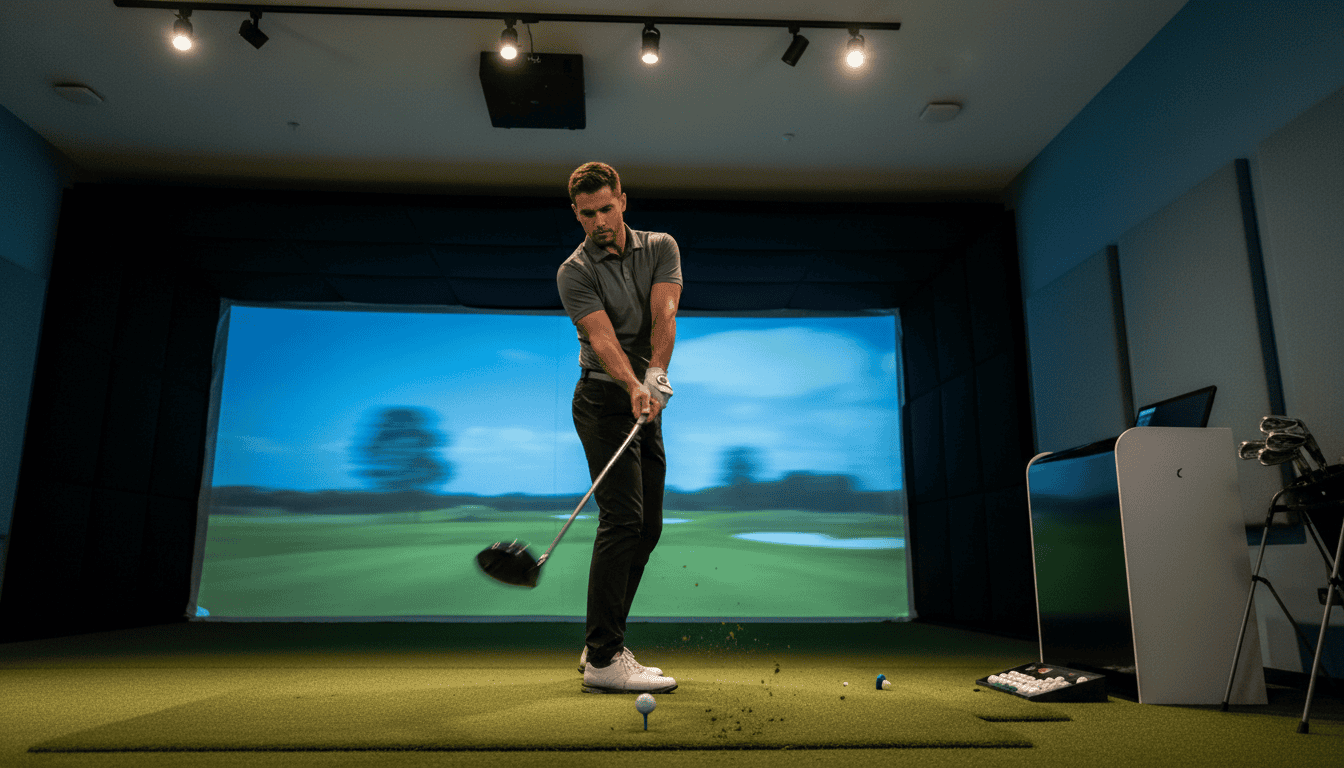


You hit a perfect drive on your golf simulator, but the screen shows a wild slice into the rough. The shot felt solid, yet the data tells a different story. These inconsistencies frustrate players at every skill level, turning practice sessions into unreliable guesswork. A 20-yard gap in carry distance or a swing path that doesn’t match reality can stem from multiple factors, none of which are obvious at first glance.
Most inaccuracies come from five key sources: sensor limitations, poor calibration, setup errors, environmental interference, and tracking system quirks. A poorly calibrated launch monitor might distort spin rates, while humidity or lighting can shift distance readings by 30 meters or more. Even the ball itself behaves differently in simulators, as physics models vary between systems. The outcome? Data that doesn’t reflect real-world performance, making it difficult to rely on your simulator for practice or improvement.
This article explains why these discrepancies occur and how to interpret the numbers. We’ll examine the most common causes, how to read simulator data despite its flaws, and practical steps to reduce errors in your setup. By the end, you’ll know when to trust your simulator’s feedback, and when to question it.
Understanding Golf Simulator Data
Golf simulators track every swing, from club speed to ball flight. But the numbers on screen don’t always match real-world results. Understanding how this data is collected and why accuracy matters helps you interpret readings correctly and improve your practice.
What is Golf Simulator Data?
Golf simulator data includes metrics like ball speed, launch angle, spin rate, carry distance, and club path. These numbers come from sensors, cameras, or radar that capture your swing and ball movement. Most systems use one of two methods:
- Photometric systems rely on high-speed cameras to record ball impact and initial flight. They excel at measuring spin and launch angles but may struggle with full ball flight in low-light conditions.
- Radar-based systems track the ball’s entire trajectory using Doppler radar. They provide detailed flight data but can be affected by environmental factors like wind or ceiling height.
For a deeper look at how these systems compare, see our article on the difference between a launch monitor and golf simulator. The data each produces isn’t identical, which explains some discrepancies you might notice.
Why Data Accuracy Matters
Accurate data helps you diagnose swing flaws, choose the right clubs, and track progress over time. Even small errors can lead to misguided adjustments. For example:
- A 1-degree error in launch angle can change carry distance by 5-10 yards.
- Overestimating spin rate might lead you to switch to a lower-spin ball unnecessarily.
- Inconsistent club path readings could mask a slice or hook you’re trying to fix.
Inaccuracies don’t mean the simulator is useless. Instead, they highlight the importance of interpreting data in context. For instance, if you know your simulator tends to underreport spin, you can adjust your expectations or cross-check with other metrics like ball flight shape.
For more on how accurate golf simulators are in general, our guide on how accurate are golf simulators breaks down what to expect from different systems and how to get the most reliable readings.
Common Causes of Data Inaccuracies
Golf simulator data doesn’t always match real-world results. These discrepancies stem from hardware, environment, and software factors. Understanding the root causes helps you interpret readings and improve accuracy.
Sensor and Calibration Issues
Sensors form the foundation of simulator data. If they’re misaligned, dirty, or outdated, readings suffer. Most launch monitors use radar or camera-based tracking, each with trade-offs:
- Radar systems (e.g., Trackman 4, Flightscope X3C) measure ball flight via Doppler effect. They require precise calibration to account for temperature, humidity, and ball type. A 1-degree misalignment can skew spin rates by 200 RPM or more.
- Camera systems (e.g., Foresight Sports GCHawk SIG12) capture high-speed images of the club and ball. Dust, scratches, or poor lighting degrade image quality, leading to missed frames or incorrect calculations.
Regular calibration is essential. Follow the manufacturer’s schedule, typically every 20-30 sessions or after moving the unit. For more on high-performance sensors, see our guide to the best launch monitors for golf simulator systems.
Environmental Factors
Simulators operate in controlled spaces, but small environmental changes introduce errors:
- Temperature and humidity affect ball compression and air density. A 10°F rise can reduce carry distance by 1-2 yards for a 7-iron.
- Lighting plays a critical role in camera-based systems. Overhead glare or inconsistent brightness causes tracking dropouts. Our golf simulator lighting guide covers optimal setups to minimize interference.
- Airflow from HVAC vents or open windows alters ball flight. Even a 5 mph breeze can shift a 150-yard shot by 3-5 yards.
Setup and Room Configuration Errors
Improper setup wastes sensor accuracy. Common mistakes include:
- Incorrect ball placement: Sensors expect the ball within a specific zone (usually 6-12 inches from the unit). Placing it too close or far skews launch angle and spin data.
- Uneven flooring: A slope of just 1 degree tilts the hitting mat, affecting club path and face angle readings.
- Obstructions: Ceiling fans, overhead pipes, or even a player’s shadow can block sensors or cameras.
Measure your space carefully. Most simulators need at least 10 feet of width, 15 feet of depth, and 9 feet of ceiling height for full-swing shots.
Tracking System Limitations and Interference
No simulator tracks every variable perfectly. Limitations include:
- Ball detection: Some systems struggle with low-spin shots (e.g., wedges) or high-lofted clubs. The ball may exit the tracking zone before full data is captured.
- Club data gaps: While ball data is typically reliable, club path and face angle readings vary by system. Radar-based units often estimate these values, while camera systems provide direct measurements.
- Interference: Wireless signals (Wi-Fi, Bluetooth) or reflective surfaces (mirrors, glass) can disrupt radar or camera tracking. Use a dedicated 5 GHz network and matte finishes to reduce noise.
Software and Ball Physics Modeling
Simulators rely on mathematical models to predict ball flight. These models make assumptions:
- Ball aerodynamics: Software uses generic coefficients for lift and drag. Premium balls (e.g., Pro V1) behave differently than range balls, but most simulators don’t account for this.
- Course conditions: Simulated wind, elevation, and turf firmness are approximations. A 10 mph headwind in a simulator may not feel the same as on a real course.
- Spin decay: Simulators often overestimate spin retention, especially on long shots. This can make greenside stops appear more aggressive than they’d be outdoors.
Check for software updates regularly. Manufacturers refine algorithms to address known inaccuracies, such as spin decay or launch angle calculations.
How to Interpret Simulator Readings
Golf simulator data gives you instant feedback on every swing, but raw numbers mean little if you can’t separate useful signals from noise. Learning to interpret readings helps you focus on meaningful patterns and ignore outliers that don’t reflect your actual performance.
Identifying Inconsistent Data
Inconsistent data appears as sudden, unexplained jumps in metrics like ball speed, spin rate, or launch angle. A 20 mph swing-to-swing variation in ball speed usually signals a misread, not a real change in your swing. Compare consecutive shots under the same conditions, if the numbers fluctuate more than 5-10%, the simulator may have lost tracking.
Common causes of inconsistency:
- Poor lighting or glare on the hitting mat
- Reflective surfaces near the hitting zone
- Worn-out or misaligned clubface stickers
- Ball position too close to the edge of the sensor’s field of view
If you see repeated inconsistencies, recalibrate the system or check the manufacturer’s troubleshooting guide for your model.
Recognizing Realistic vs. Unrealistic Ball Flight
Realistic ball flight follows predictable physics. A driver shot with 15° launch and 2,500 rpm spin should carry 220-260 yards in still air. If the simulator shows 320 yards with the same numbers, the data is likely off. Compare your simulator distances to real-world averages for your swing speed, most amateurs see 2.3-2.5 yards of carry per mph of clubhead speed with a driver.
Unrealistic ball flight often includes:
- Sudden mid-air direction changes without wind or elevation data
- Balls that stop or reverse direction in flight
- Trajectories that defy gravity (e.g., a 5-iron climbing after apex)
When you spot these, check for sensor obstructions or recalibrate the launch monitor before your next session.
Understanding Data Ranges and Variances
No simulator delivers 100% accuracy, so expect small variances even under ideal conditions. Most launch monitors claim ±1 mph ball speed, ±50 rpm spin, and ±0.5° launch angle accuracy. These tolerances add up, your real launch angle might be 14.7° while the simulator reads 15.2°.
Use data ranges to set realistic expectations:
- Driver ball speed: ±2 mph
- Spin rate: ±100 rpm
- Carry distance: ±5 yards
For more on interpreting specific metrics, see our guide on how to read launch monitor data. Focus on trends over individual shots, if your spin rate gradually increases over a session, it may indicate fatigue or a swing change, not a sensor error.
Minimizing Data Discrepancies
Golf simulator data inaccuracies often come from preventable issues. These steps reduce errors and improve reading consistency.
Regular Calibration and Maintenance
Calibration matches the simulator’s sensors to real-world measurements. Most systems include a built-in calibration tool, use it before each session or at least once a month. Check launch mats, club sensors, and camera lenses for wear. Replace damaged parts immediately, as scratches or shifts can skew data. For photometric systems, clean camera lenses weekly with a microfiber cloth to remove dust or smudges that block tracking.
Optimizing Environmental Conditions
Lighting and temperature affect sensor performance. Avoid direct sunlight or overhead glare, which can confuse camera-based systems. Use diffused, even lighting (300–500 lux) for consistent tracking. Keep the room temperature between 60–80°F (15–27°C) to prevent sensor drift. Humidity above 60% can cause condensation on lenses or electronics, so use a dehumidifier if needed. If your simulator uses infrared, avoid heat sources like radiators or space heaters near the tracking area.
Ensuring Proper Setup and Space Requirements
Simulators need specific space to function accurately. Measure your room against the manufacturer’s minimum requirements, most need at least 10 feet of width, 15 feet of depth, and 9 feet of ceiling height. Position the launch monitor or cameras at the correct distance from the hitting mat (usually 6–12 inches behind the ball). Misalignment here causes clubhead speed and angle errors. Secure all components to prevent shifting during use, and avoid placing the simulator near walls or objects that could reflect signals.
Addressing Tracking Interference
Electromagnetic interference (EMI) and radio frequency (RF) signals can disrupt data. Keep phones, Wi-Fi routers, and Bluetooth devices at least 3 feet away from the simulator. If you use a radar-based system, avoid metal objects (shelves, clubs, or bags) in the tracking path, as they reflect signals and create false readings. For multi-camera setups, ensure no two cameras have overlapping fields of view that could confuse the system. If you notice erratic readings, turn off nearby electronics to test for interference.
Software and Firmware Updates
Manufacturers release updates to fix bugs and improve tracking algorithms. Check for updates monthly and install them as soon as they’re available. Some updates include recalibration tools or new settings to adjust for environmental factors. If your simulator connects to a PC or tablet, keep the operating system and drivers current to avoid compatibility issues. Outdated software is a common cause of data lag or misreads.
Common Mistakes to Avoid
Accurate golf simulator data depends on proper setup and maintenance. Small oversights can lead to inconsistent readings. Avoiding these mistakes improves reliability and keeps practice sessions productive.
Failing to Calibrate Sensors and Launch Monitors Properly
Calibration matches sensors with the simulator’s software. Without it, ball speed, launch angle, and spin rates may read incorrectly. Most systems need calibration before first use and at regular intervals. Check the manufacturer’s guidelines for timing, some recommend monthly adjustments. Skipping this step introduces errors that grow over time.
Not Adjusting for Environmental Conditions
Temperature, humidity, and air pressure change how a ball flies. Simulators account for these factors, but only if the user enters the correct data. For example, cold weather slows ball speed, while high humidity increases spin. Entering current conditions ensures the software adjusts calculations accurately. Ignoring this step creates gaps between simulator data and real-world performance.
Incorrect Sensor Placement or Poor Room Setup
Sensors must sit at exact distances and angles. Placing them too close or too far from the hitting area distorts readings. Room dimensions also matter, low ceilings or nearby walls can interfere with radar-based systems. Follow the manufacturer’s specifications for minimum room size and sensor placement. For more on setup errors, see our guide on common golf simulator mistakes.
Ignoring Radar Interference or Poor Lighting
Radar-based launch monitors pick up interference from other electronics, such as Wi-Fi routers or fluorescent lights. Keep the hitting area clear and avoid placing monitors near interference sources. Lighting also affects performance, poor visibility confuses camera-based systems. Use bright, consistent lighting to help sensors capture clear images of the ball and club.
Using Incompatible Equipment
Not all clubs, balls, or hitting mats work with every simulator. Some systems need specific ball types or reflective stickers for accurate tracking. Using non-approved equipment can cause missing or incorrect data. Check the simulator’s compatibility list before buying accessories. Mixing incompatible gear often leads to frustration and wasted time troubleshooting.
Frequently Asked Questions
Why do golf simulator readings show inaccurate ball flight or swing data?
Golf simulators use sensors and algorithms to track club and ball movement. Errors happen when these systems misread data. Worn clubfaces or reflective surfaces can scatter light, confusing optical sensors. High-speed cameras may struggle in low light or with fast swings, missing key data points. Software updates sometimes introduce bugs that distort readings until patched.
How does improper calibration affect simulator accuracy?
Calibration matches the simulator’s sensors to your space and equipment. If done wrong or skipped, the system may miscalculate distances, angles, or clubhead speed. A miscalibrated launch monitor might register a slice as straight because it doesn’t account for room dimensions. Recalibrate regularly, especially after moving equipment or switching clubs. Most simulators include calibration instructions in their manuals.
What environmental factors cause data discrepancies?
Lighting, temperature, and humidity affect readings. Bright sunlight or overhead lights can interfere with camera systems. Extreme temperatures may alter sensor performance. Humidity causes ball skidding or clubface moisture, changing spin rates. Even air drafts from fans or windows can push lightweight foam balls off course. Use simulators in controlled indoor spaces with steady lighting for best results.
How can setup issues lead to unreliable simulator readings?
Common setup mistakes include wrong ball placement, uneven flooring, or loose screens. A ball too far forward or back in the hitting zone skews launch angle data. Uneven surfaces create inconsistent ball roll. A sagging screen absorbs impact energy, reducing rebound accuracy. Follow the manufacturer’s setup guide and check alignment before each session.
What role do sensors and tracking systems play in data accuracy?
Sensors and tracking systems determine simulator precision. High-end setups use multiple cameras, radar, or infrared sensors to capture data from different angles, minimizing blind spots. Budget systems often rely on fewer sensors, creating data gaps. A single-camera system might miss side spin on a drive, while a multi-sensor setup tracks the full trajectory. Upgrading hardware or software can improve tracking over time.
Final Thoughts
Golf simulator data gives useful feedback, but it isn’t perfect. Small errors in launch angle, ball speed, or spin can add up, especially when setup, lighting, or worn equipment affects readings. We found that even high-end systems show slight variations between shots, what matters is recognizing patterns rather than chasing exact numbers. Focus on consistent trends in your data, like a persistent fade or low spin rate, instead of reacting to single outliers.
To get the most from your simulator, start with proper calibration and room setup. Check your hitting mat, net alignment, and lighting before each session, and replace worn balls or clubface tape regularly. When reviewing data, compare similar clubs and shot types rather than mixing driver and wedge numbers. If you notice persistent discrepancies, test with a launch monitor to cross-check results.
The goal isn’t flawless data, it’s improvement. Use simulator feedback to identify weaknesses, then work on drills to address them. Small adjustments make a big difference in turning raw data into actionable practice.